npm v12 no longer runs a dependency’s install scripts unless your project approves them. That closes the preinstall route behind Mini Shai-Hulud, a 2026 npm supply chain attack. npm v12 came out on July 8, 2026. Some attack routes remain open, and a test below shows one that worked on npm 12.
One harmless test package shows the change. Its install scripts do nothing but write a line to a file called MARKER.txt. On Node 26.13.1 with npm 11.20.0, both scripts ran. With npm 12.2.2, the install succeeded, and the file never appeared.
GitHub’s changelog and Semgrep’s write-up both say a Git dependency’s prepare script is blocked too. On npm 12.2.2, with Git dependencies allowed, the script still ran, and npm printed a warning saying it had blocked the script.
Free Bonus: npm Supply Chain Security Cheat Sheet
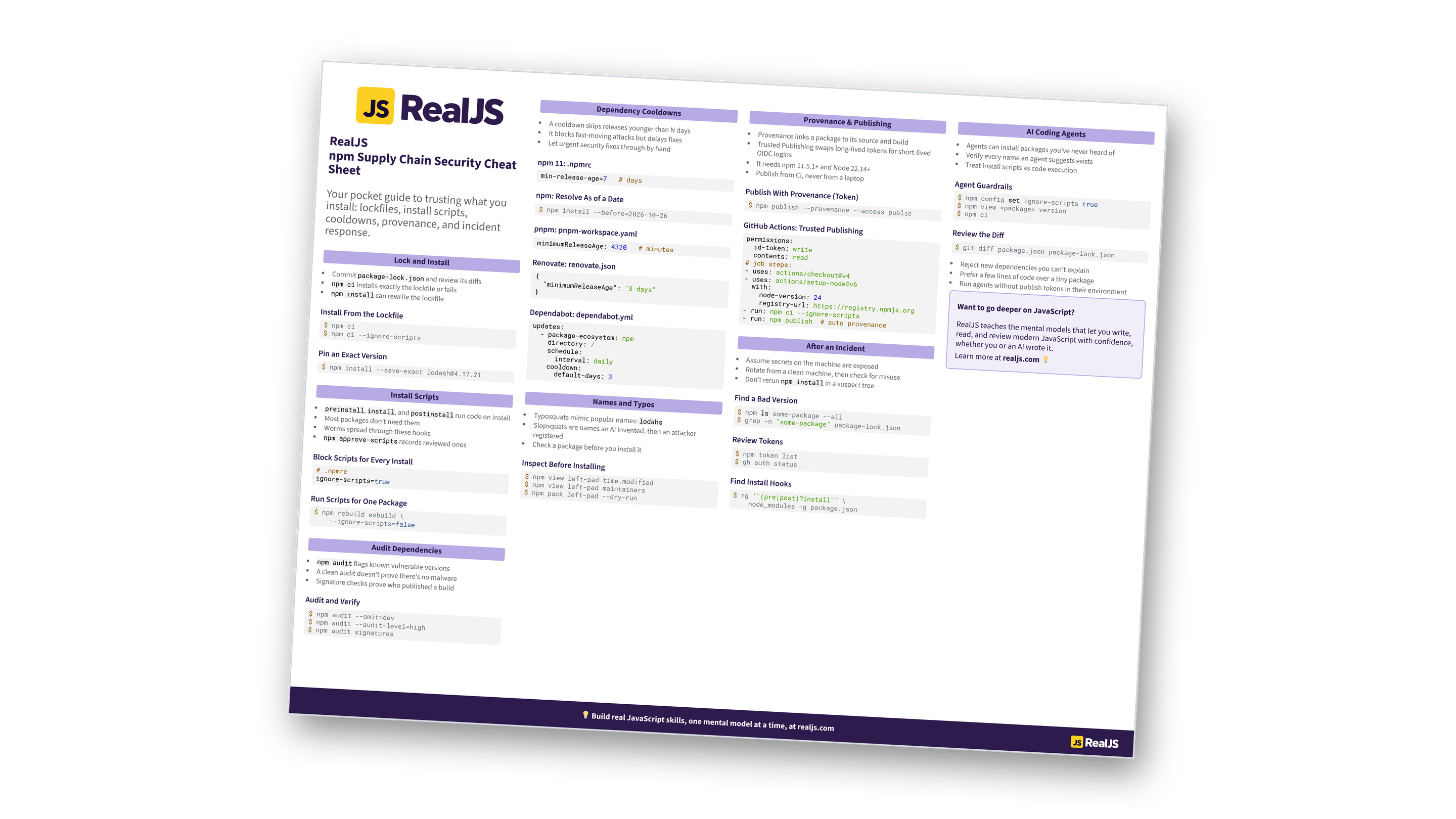
Install-script controls, lockfile habits, and cooldown settings for safer npm installs in one printable reference.
Get the Free Cheat Sheet »Why npm Install Scripts Were the Way In
A dependency’s preinstall, install, and postinstall scripts run while npm installs it, with your user account’s permissions. Nobody has to import the package for that code to run. Typing npm install is enough. The script can then read anything your account can, including the npm tokens and cloud keys that 2026’s attacks went after.
Mini Shai-Hulud used preinstall scripts twice this year:
-
The April wave: On April 29, StepSecurity reported poisoned releases of SAP’s
mbtbuild tool and three@cap-jspackages. Each added apreinstallscript that stole the developer’s npm token, then used it to publish infected versions of other packages. -
The May wave: On May 19, an attacker took over the npm account
atooland published 637 malicious versions of over 300 packages in 22 minutes, according to SafeDep. The new versions ran"preinstall": "bun run index.js", and the payload harvested AWS credentials.
The attacker also built in a backup. In almost all of those versions, an optional dependency pointed at an imposter commit in the antvis/G2 GitHub repository. That commit’s prepare script ran the same payload:
“Redundant payload delivery via GitHub imposter commits survives even if
preinstallhooks are blocked”
GitHub announced npm v12’s new script defaults on June 9, three weeks after the second wave.
What Changed in npm v12
The new block applies only to the packages you install. Your project’s own scripts still run, so a postinstall in your own package.json works as before. The current release is 12.2.2, from November 4.
One of your own scripts does change when it runs. Your own preinstall now runs before npm installs your dependencies, so a preinstall that calls a dependency’s tool can fail on a clean install. Moving that work to postinstall avoids it.
Node 26 doesn’t bring the new default with it. Node 26.13.1 still bundles npm 11.20.0, so you have to upgrade npm yourself. npm 12 needs Node ^22.22.2 || ^24.15.0 || >=26.0.0, and that range leaves out older Node 22 and 24 releases.
Two other changes in the release notes can break commands that worked on npm 11. Unknown flags now stop the command with an error. Also, npm shrinkwrap is gone, so if your project uses npm-shrinkwrap.json, rename that file to package-lock.json.
npm 11 vs npm 12: One Harmless Package, Two Results
The test package, script-demo, sits in a local tarball and was never published to the public registry. Its preinstall and postinstall scripts both call one small file, mark.js:
mark.js
const { appendFileSync } = require("node:fs");
const { join } = require("node:path");
const dir = process.env.INIT_CWD || process.cwd();
appendFileSync(join(dir, "MARKER.txt"), `script-demo ${process.argv[2]} ran\n`);
npm sets INIT_CWD to the folder where you typed npm install. That puts MARKER.txt in your project rather than deep inside node_modules, where you could miss it.
When you run each install below, check two things: whether npm’s warning says “not yet covered” or “blocked” and whether MARKER.txt exists afterward. npm won’t stop to ask you anything in either version, because the warning only prints after the install has finished.
On npm 11.20.0
This run used the npm version that comes with Node 26.13.1 in a fresh project:
$ npm install ../script-demo-1.0.0.tgz

added 1 package, and audited 2 packages in 731ms

found 0 vulnerabilities
npm warn install-scripts 1 package has install scripts not yet covered by
allowScripts:
npm warn install-scripts   [email protected] (preinstall: node mark.js
preinstall; postinstall: node mark.js postinstall)
...
$ cat MARKER.txt
script-demo preinstall ran
script-demo postinstall ran
Both scripts ran. npm 11 already knows about allowScripts, the package.json key that lists which packages may run install scripts, but “not yet covered” is only a heads-up. Even an explicit "allowScripts": { "script-demo": false } in package.json doesn’t stop the scripts from running on npm 11.20.0.
On npm 12.2.2
npm 12.2.2 ran the same install in another fresh project:
$ npm install ../script-demo-1.0.0.tgz

added 1 package, and audited 2 packages in 515ms

found 0 vulnerabilities
npm warn install-scripts 1 package had install scripts blocked because they
are not covered by allowScripts:
npm warn install-scripts   [email protected] (preinstall: node mark.js
preinstall; postinstall: node mark.js postinstall)
...
$ ls
node_modules
package.json
package-lock.json
The install succeeded, and the package is in node_modules. The warning now says “blocked”, and there’s no MARKER.txt. npm 12 installed the package but ran neither of its scripts. A package that relies on its install script, such as one that compiles native code, stays unbuilt until you approve it.
Approving a Package With npm approve-scripts
To let a blocked package run its scripts, approve it with npm approve-scripts. npm’s docs call the same command npm install-scripts approve. To see every package still waiting, run npm install-scripts ls. This approval used script-demo from a local test registry, because a registry package gets a name and version to pin:
$ npm approve-scripts script-demo
Approved script-demo:
  added [email protected]
The command records the approval in package.json, under a new key:
{
  "allowScripts": { "[email protected]": true }
}
The approval names version 1.0.0, not the package as a whole. When script-demo 1.0.1 comes out, its scripts are blocked again until someone approves that version too. A hijacked release, like the ones Mini Shai-Hulud pushed, doesn’t inherit the trust you gave the release before it.
Approving doesn’t run anything by itself. Run npm rebuild next, and npm runs the scripts you approved without a fresh install.
Which npm Supply Chain Attacks Does v12 Stop?
The answer depends on when the malicious code runs. npm 12 guards the moment of install, and only for the script types it knows about. Code that waits until your app loads the package, or that comes in through a route npm doesn’t gate, gets past that guard.
What It Blocks
The block that stopped script-demo also stops Mini Shai-Hulud’s preinstall scripts.
The block also covers a quieter trick. StepSecurity described a new variant of the Miasma worm that uses a technique it calls Phantom Gyp: the package ships a binding.gyp file and no install script at all. npm sees that file and runs node-gyp rebuild on its own to compile native code. npm 12.2.2 lists such a package as install: node-gyp rebuild in its blocked list and skips the build, whereas npm 11.20.0 runs it.
npm refuses Git and remote dependencies by default, too. The allow-git and allow-remote settings now start at none, so a package from a Git repository fails before npm fetches anything:
$ npm install git+file:///tmp/demo/git-demo
npm error code EALLOWGIT
npm error Fetching packages of type "git" have been disabled
npm error Refusing to fetch "git+file:///tmp/demo/git-demo"
...
That run used a direct Git dependency. Mini Shai-Hulud hid its Git dependency one level down, in another package’s optionalDependencies. The default covers that route too. A test package built the same way installed without its Git dependency, and the prepare script never ran. Because the dependency was optional, npm skipped it without an error or a warning.
What Still Gets Through
npm 12.2.2 still ran a Git dependency’s prepare script during the install. That happened once Git dependencies were allowed with --allow-git=root, and allowScripts made no difference. npm printed its “blocked” warning all the same, while the git-demo copy of mark.js wrote git-demo prepare ran to MARKER.txt:
$ npm install git+file:///tmp/demo/git-demo --allow-git=root

added 1 package, and audited 2 packages in 1s

found 0 vulnerabilities
npm warn install-scripts 1 package had install scripts blocked because they
are not covered by allowScripts:
npm warn install-scripts   [email protected] (prepare: node mark.js prepare)
...
$ cat MARKER.txt
git-demo prepare ran
Git isn’t required for this gap. A local folder installed with --install-links ran its prepare script despite the “blocked” warning.
Only --ignore-scripts stopped either one, and that flag is blunt: it skips every script, approved or not.
A fix is open as npm/cli pull request #9777, “fix(arborist): apply allowScripts gate to scripts pacote runs at extract”. It hasn’t been merged as of November 12, 2026.
Code that runs when your app uses a package is the bigger gap. On September 17, Checkmarx reported on indexed-btree, a lookalike of the sorted-btree package with no install hooks at all. Its payload hid in BTree.prototype.set and launched when an app stored an entry under the key 100. A block on install scripts never came into play. Checkmarx put the package’s reach at almost two million downloads a week.
Its write-up also names the limit of npm 12’s new defaults:
“npm v12 provided a big shift by blocking lifecycle scripts but this is not stopping attackers”
Semgrep names two more routes that npm 12 leaves open:
- Typosquatting: A package named one typo away from the one you meant
- Dependency confusion: A public package that takes the name of a private one your company uses
Approved scripts are a third route, and this one is in your hands. Once a version is on your allow list, its scripts run, whatever they do. The last section covers what to check before you approve one.
How Lockfiles, npm ci, and a Cooldown Limit What You Install
Two habits help you control which versions reach your machines in the first place, whatever their scripts do. Commit package-lock.json, and install with npm ci on build machines. npm ci installs exactly the versions the lockfile records, so a new release can’t slip in between installs. After script-demo 1.0.1 was published to the test registry, npm ci still installed the locked 1.0.0. On npm 12, npm ci honors allowScripts as well.
A cooldown handles the moment you add or update a package. The min-release-age setting takes a number of days and tells npm to skip any version published more recently than that. Set with --min-release-age=3, the cooldown made npm 11.20.0 pick the older 1.0.0 over a 1.0.1 published moments before, and npm 12.2.2 did the same.
A week is a sensible wait, because a hijacked release would have to go unnoticed that long to reach you. Add it to your project’s .npmrc file:
min-release-age=7
There are two catches. If no version of a package is old enough yet, npm’s docs say the install stops with an error. That can surprise you when you add a package that was published a day ago.
The wait also holds back security fixes. When a patched release is younger than the cooldown, npm audit fix keeps the vulnerable version, warns, and fails. To let the patched release through, add min-release-age-exclude[]=<package> to .npmrc on a separate line for each package.
Should You Upgrade to npm v12?
Yes, if your Node version is in npm 12’s range. npm 12 blocks unapproved install scripts by default. Upgrade npm globally:
$ npm i -g npm@12
After that, read the blocked list npm prints before you approve anything. Each entry names a package, a version, and the command it wants to run. A command such as node setup.mjs doesn’t show what that file does, so open the file in node_modules first. That’s the moment to ask why a date picker needs a postinstall.
Cleaning up after a bad release. Upgrading doesn’t undo damage from an install that already ran. If a project installed one of Mini Shai-Hulud’s releases, treat every machine that ran the install, including CI runners, as exposed. StepSecurity’s write-up says to rotate every credential those machines could reach, starting with npm, GitHub, and cloud tokens.
The write-up also says to remove the files the worm planted to start itself again, such as .vscode/tasks.json and .claude/settings.json.
Git and local folder dependencies. Until pull request #9777 lands, don’t pass --allow-git or --install-links for code you haven’t read, since both still let a prepare script run. Watch npm’s release notes for that fix.
Other package managers. pnpm and Yarn have their own settings for install scripts, so check them if your team uses one. The RealJS reference covers both tools and the JavaScript terms behind them.
If you’d rather read what a package’s install script does than take it on trust, RealJS has JavaScript lessons that start from the basics.