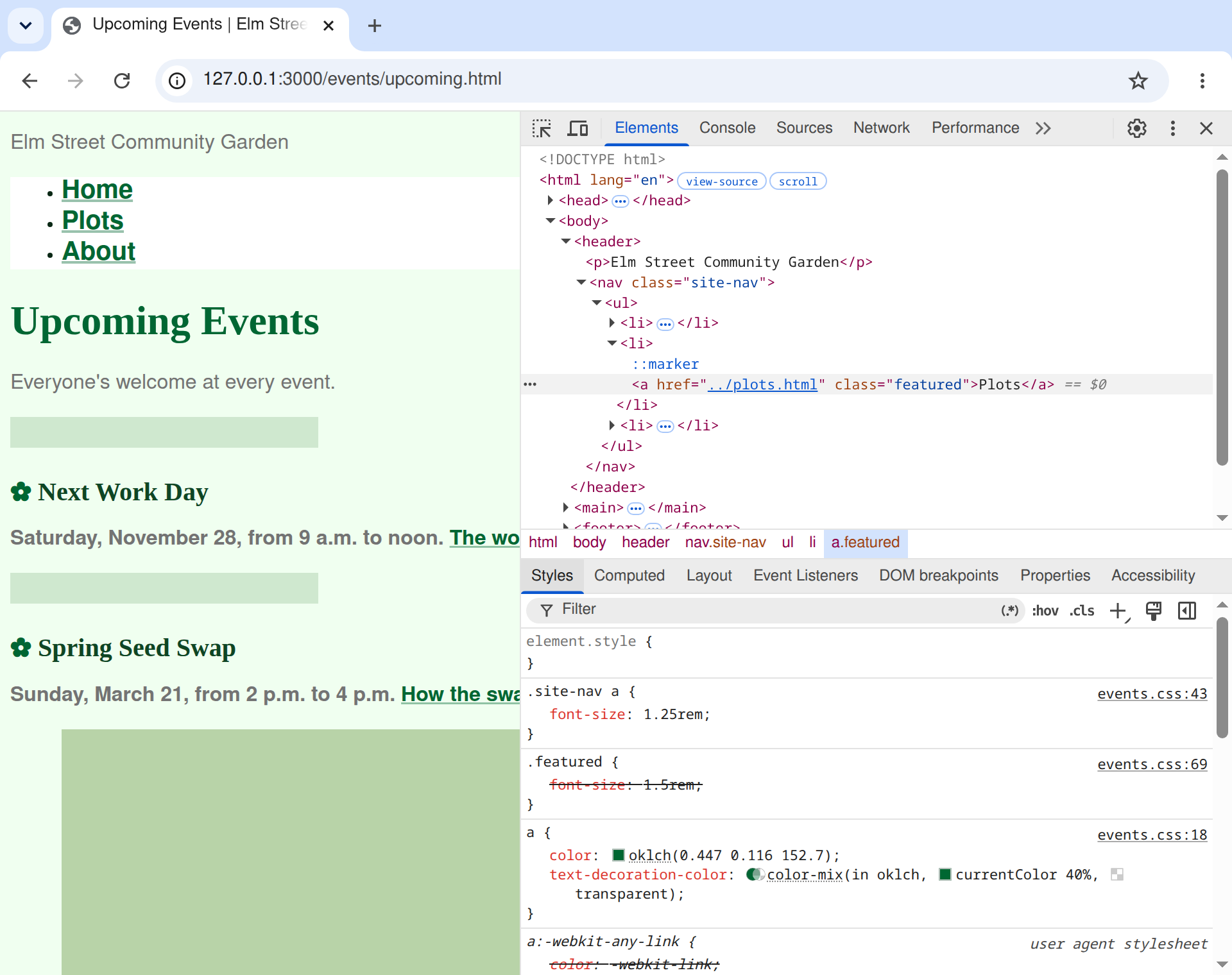
In the plots exercise, two of your rules matched the same link and gave it different colors. Only one color can appear, and the Styles pane has already shown you that the other one gets crossed out. A programmer’s guess at which one wins is “the last one,” as with the last assignment to a variable. This lesson puts that guess to the test.
In this lesson, you’ll find out how the browser picks the winner when several rules set the same property on an element. You’ll be able to predict the result before you save, and check it in the Styles pane. Start with a small change Rosa has asked for on the events page.
Make One Menu Link Stand Out
Rosa has one plot left this season, plot 12, and she’d like the menu’s Plots link to catch the eye on the events page. She wants it to be a size larger than Home and About. One link needs its own style, so it needs its own class. In events/upcoming.html, add class="featured" to the Plots link, in the menu you built in HTML:
<li><a href="../plots.html" class="featured">Plots</a></li>
The name featured says what the link is, the one Rosa is featuring, and nothing about how it looks. Now give the class a rule. The menu’s own rule, .site-nav, sits near the top of events/events.css, so keep the menu’s styles together and add the new rule right after it:
events/events.css
.site-nav {
  background-color: white;
  font-weight: bold;
}

.featured {
  font-size: 1.5rem;
}
Save, and look at the menu. Plots is the same size as Home and About. The class is spelled the same in both files, and the Styles pane shows no warning icon, so nothing is broken.
A programmer’s explanation comes quickly. Further down the file, the .site-nav a rule from Follow the Tree With Combinators sets font-size: 1.25rem on all three links. In a program, the last assignment wins, so it seems the fix is to move .featured below it.
This is a detour, but take it, because why it fails is what this lesson is about. Cut the .featured rule and paste it at the very end of events.css, after the h2::before rule from Select by Position and Add Content. Save. Plots still hasn’t grown. Select the Plots link in the Elements panel and read the Styles pane: