
In the last lesson, you linked events/events.css to Rosa’s work day notice, wrote your first rules, and met the Styles pane. Every declaration you typed there was correct. Sooner or later, one won’t be, and CSS handles that very differently from the languages you program in.
In this lesson, you’ll give the notice’s job headings a new look, and when the page doesn’t change, you’ll go looking for the reason the way you would in a program. By the end, you’ll be able to look at a rule and predict which of its declarations take effect, and you’ll know where Chrome shows you the ones it threw away.
Style the Job Headings and Look for the Error
Rosa would like the two job headings on the notice, Turn the Compost and Mulch the Plots, to stand out in green and be a little smaller. Open events/events.css and add this rule below the one you wrote in the last lesson:
events/events.css
h2 {
  colour: green;
  font-size: 1.25 rem;
}
Save the file and look at the notice in your live preview. The job headings are still dark slate gray, like the rest of the text, and still the size they were. Something in the rule didn’t work.
Your next move is to look for the error message. Open DevTools, then click the Console tab:
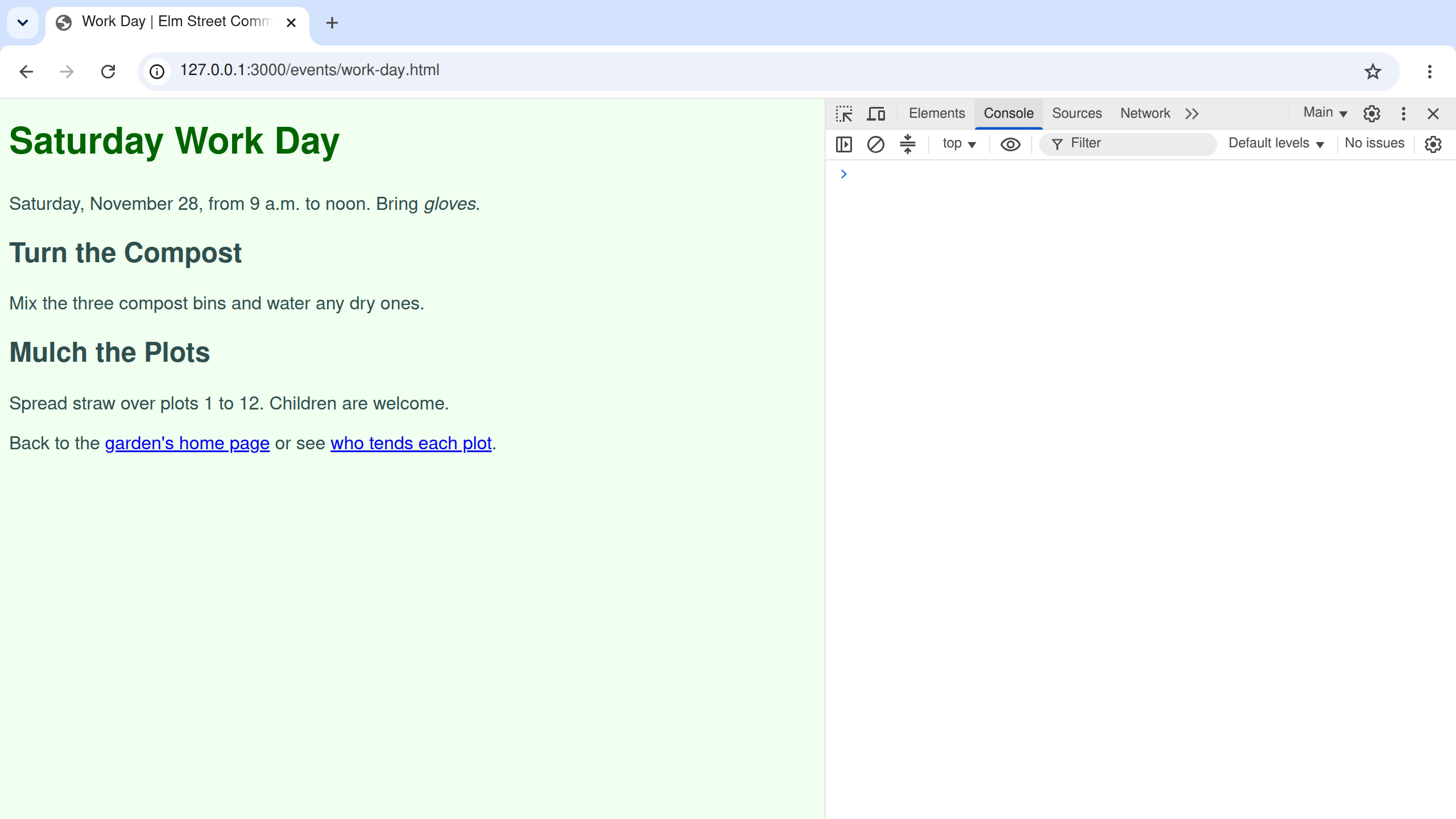
The Console is empty, with no error and no warning. In a program, a misspelled name would stop the run with an error that points at the line. CSS doesn’t work that way. You’ve seen this behavior before, because the HTML you wrote earlier doesn’t report its mistakes either. The parser repairs a missing end tag, draws the page anyway, and leaves the Console empty. CSS stays quiet too, by a different route.
See What the Browser Dropped
When the browser reads a declaration it can’t understand, it drops it: it discards that one declaration and carries on with the next. That’s what happened to both of yours.
colour is what your fingers type if you grew up writing British English, but it isn’t a CSS property, because CSS uses the US spelling, color. And 1.25 rem reads like a quantity and its unit, the way you’d write it in a sentence, but it isn’t a valid length, because a number and its unit must touch. So the browser dropped both declarations, and the headings kept the dark slate gray they pick up from your body rule and the browser’s default size.
The Styles pane is where you see this. Click the Elements tab, select the Turn the Compost heading, and look at your h2 rule in the Styles pane:
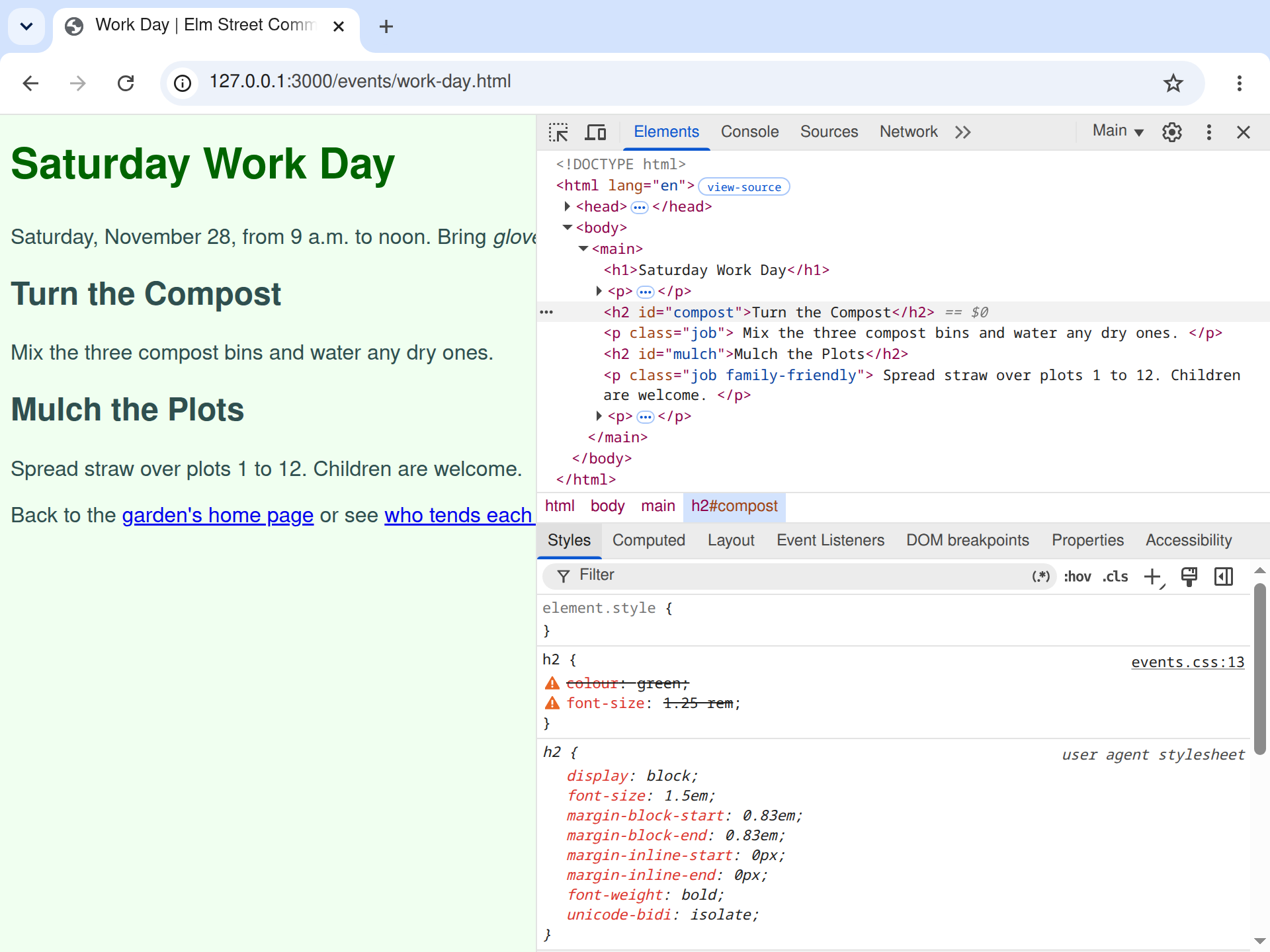
Both declarations are struck through, each with a warning icon, but not in the same way. The whole colour: green line is crossed out, because Chrome doesn’t know the property at all. In the font-size line, only the value 1.25 rem is crossed out, because the property is fine and only the value is wrong.
Hover over an icon and Chrome says why: Unknown property name for colour, and Invalid property value for 1.25 rem. That warning icon is where CSS mistakes show up, so whenever a rule doesn’t do what you expect, look in the Styles pane first.
CSS stays silent about mistakes because the browser can’t tell a typo from a feature it doesn’t know yet. CSS keeps gaining new properties and values.
A stylesheet that uses a new one still has to work in an older browser, so CSS’s rules tell every browser to skip what it doesn’t understand and keep going. The rest of the stylesheet still applies. To the browser, colour looks the same as a property from the future. MDN describes this in CSS error handling.
Fix both declarations by changing colour to color and 1.25 rem to 1.25rem:
events/events.css
h2 {
  color: green;
  font-size: 1.25rem;
}
Save, and both job headings turn green and shrink a little:
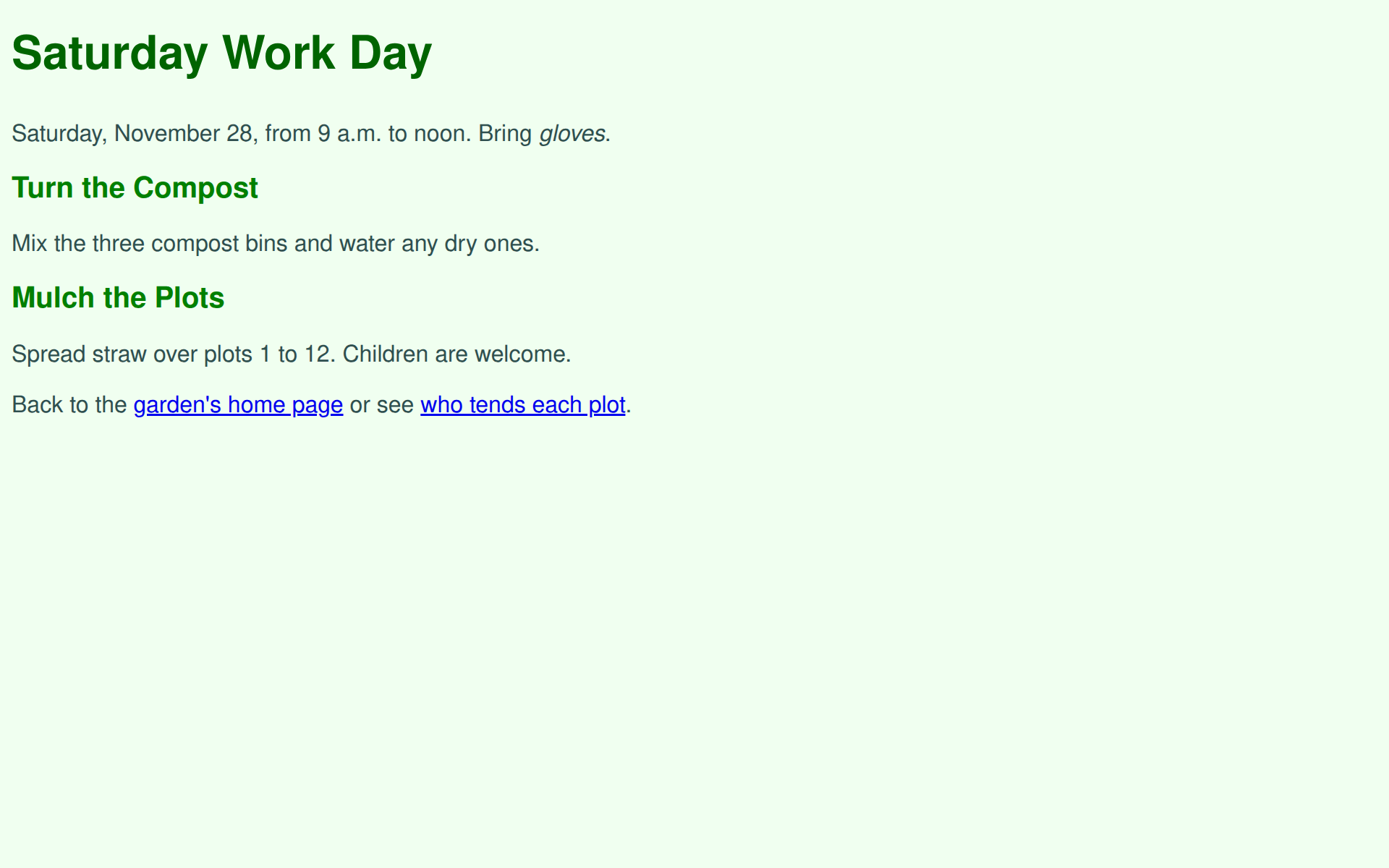
In the Styles pane, the two declarations now appear without a line through them or a warning icon.
Each of those declarations ends with a semicolon, so watch out for a missing one. A linebreak doesn’t end a declaration in CSS, so without the semicolon, the browser reads on into the next line. If you add italics to the job headings and forget the semicolon after green, the browser reads one declaration, color with the value green font-style: italic:
h2 {
  color: green
  font-style: italic;
  font-size: 1.25rem;
}
That isn’t a color, so the browser drops the whole declaration, and the italics go with it. The font-size declaration after the pair still applies. A semicolon ends a declaration, and so does the rule’s closing }. The semicolon before } is optional, but write it anyway, so that a declaration you add later won’t become part of the preceding one.
Predict What Survives
Before you predict, meet one more kind of declaration that real stylesheets are full of. A shorthand is a property that sets several properties in one declaration. font is one, and this rule uses it to set the size and the font family of the notice’s main heading together:
h1 {
  font: 2.5rem Georgia, serif;
}
The font family value is a fallback list: the browser uses Georgia if it’s installed on the computer, and otherwise serif, its own default serif font.
Watch out, though. A shorthand sets every property it covers, even the ones you don’t give a value. Whatever you leave out goes back to its starting value, and for font, that includes the weight and the style.
So this rule also makes the heading normal weight, undoing the bold that headings get by default. Nothing was dropped, so the Styles pane shows no warning.
Inside one rule, a later declaration of a property replaces an earlier one, so a shorthand also overrides earlier declarations of the properties it covers. If you only mean to change the size and the family, write font-size and font-family instead. MDN lists what each shorthand covers in Shorthand properties.
Now put the three ideas together. Read this rule for the main heading and decide which of its five declarations take effect and what Saturday Work Day will look like:
h1 {
  font-style: italic;
  font: 2.5rem Georgia, serif;
  color: darkgreen
  font-weight: bold;
  font-size: 3 rem;
}
Write your answer down before you go on. Then add the rule below your h2 rule in events.css, save, and compare the heading and the warning icons in the Styles pane with your prediction. Once you’ve checked, read on for why.
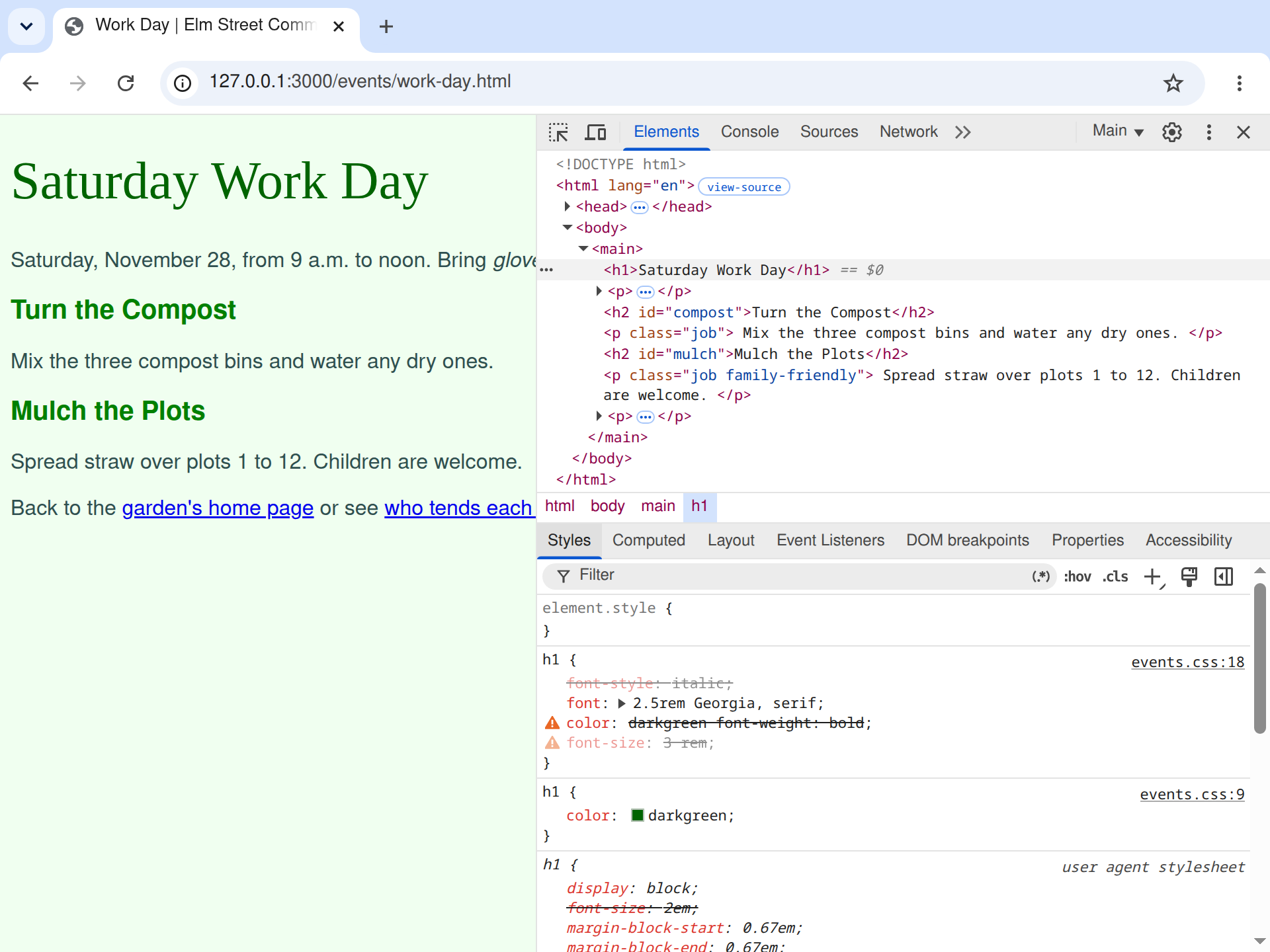
Only font takes effect. It sets the size and the family, and it resets the style, so the font-style: italic above it is undone. Without a semicolon after darkgreen, the browser reads the color value as darkgreen font-weight: bold, which isn’t a color, so the combined declaration is dropped. And 3 rem isn’t a valid length, so the last font-size is dropped too.
The heading grows and switches to a serif font, but it’s upright, not bold, and still dark green. That green doesn’t come from this rule’s dropped color: your h1 rule from the last lesson still applies, because nothing valid replaced its color:
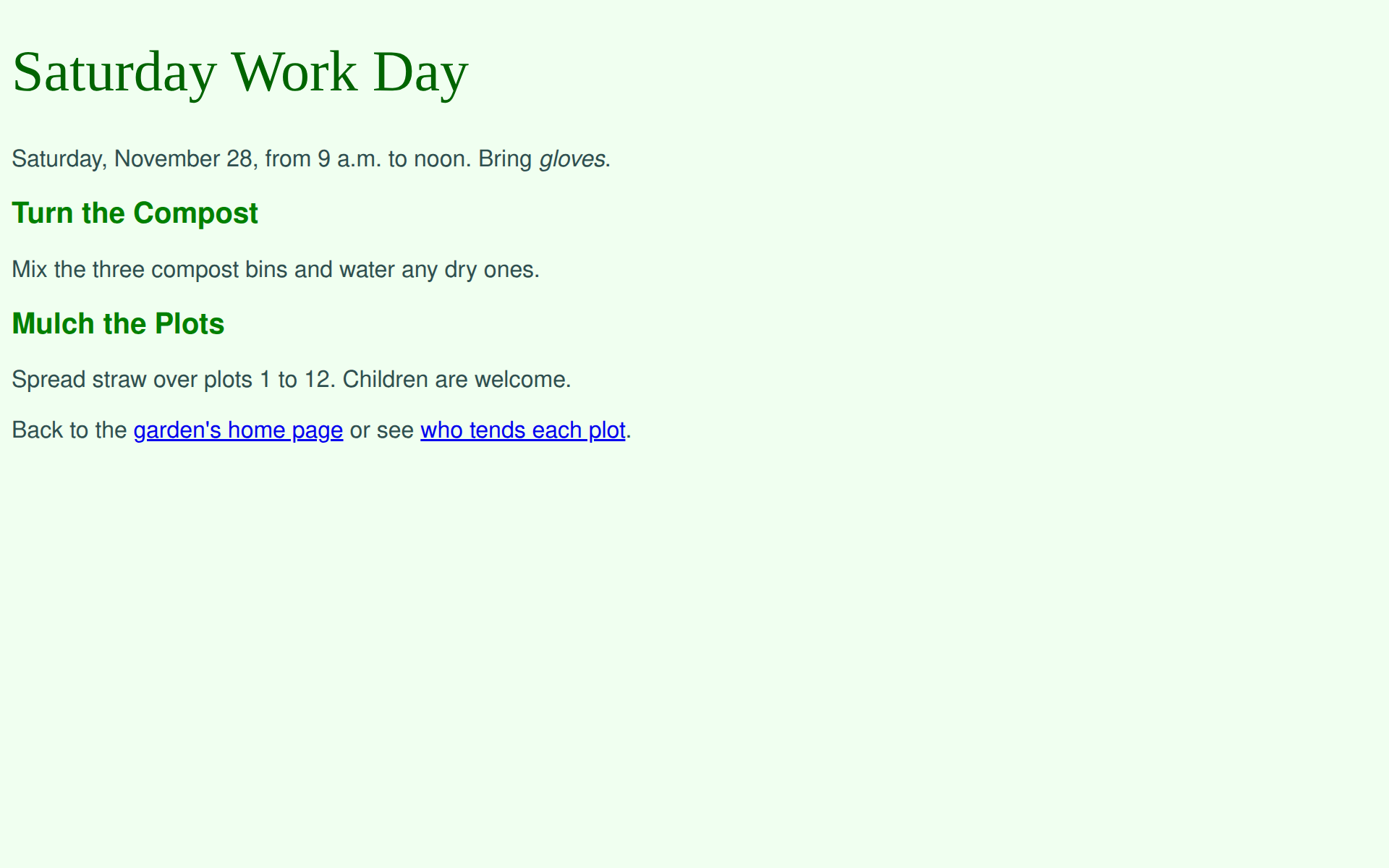
The Styles pane shows the same story in the new h1 rule. The combined color declaration and font-size: 3 rem each have a warning icon, because the browser dropped them. The font-style: italic line is struck through with no icon, because it’s valid but font overrides it:
Want more practice spotting dropped and reset declarations?
These experiments have done their job, so delete the h1 and h2 rules you added in this lesson from events.css. Keep the body and h1 rules from the last lesson, and the notice goes back to dark slate gray text in your system font on honeydew, under a dark green heading. In the next lesson, Choose Colors in Modern CSS, you’ll pick colors and write the garden’s green and the notice’s text color in the different ways CSS offers.
