
Your first pull request is open, with a linked issue and a description that says what changes and why. The last step starts with the green button at the bottom of its page, and that button has more choices than it shows at first.
In this lesson, you’ll squash and merge your pull request, so that main gets one tidy commit for the whole issue. Then you’ll bring that commit to your laptop and clean up the branch you no longer need, even when Git seems to doubt your merge. Start with the question that button asks, which is how your four commits should get into main.
Squash and Merge on GitHub
GitHub can put a pull request’s commits into main in three ways, and you pick one. Open your pull request and scroll to the bottom of the Conversation tab. The green button says Merge pull request, and the small arrow next to it opens a menu with all three:
-
Create a merge commit adds your four commits to
main, plus a merge commit that joins the two lines, like the merges you’ve made on your laptop. -
Squash and merge combines the changes of all four commits into one new commit on
main. -
Rebase and merge copies your four commits onto the tip of
main, one by one, without a merge commit.
Here’s the menu open on a smaller pull request with two commits, so its descriptions say “The 2 commits” where yours say four:
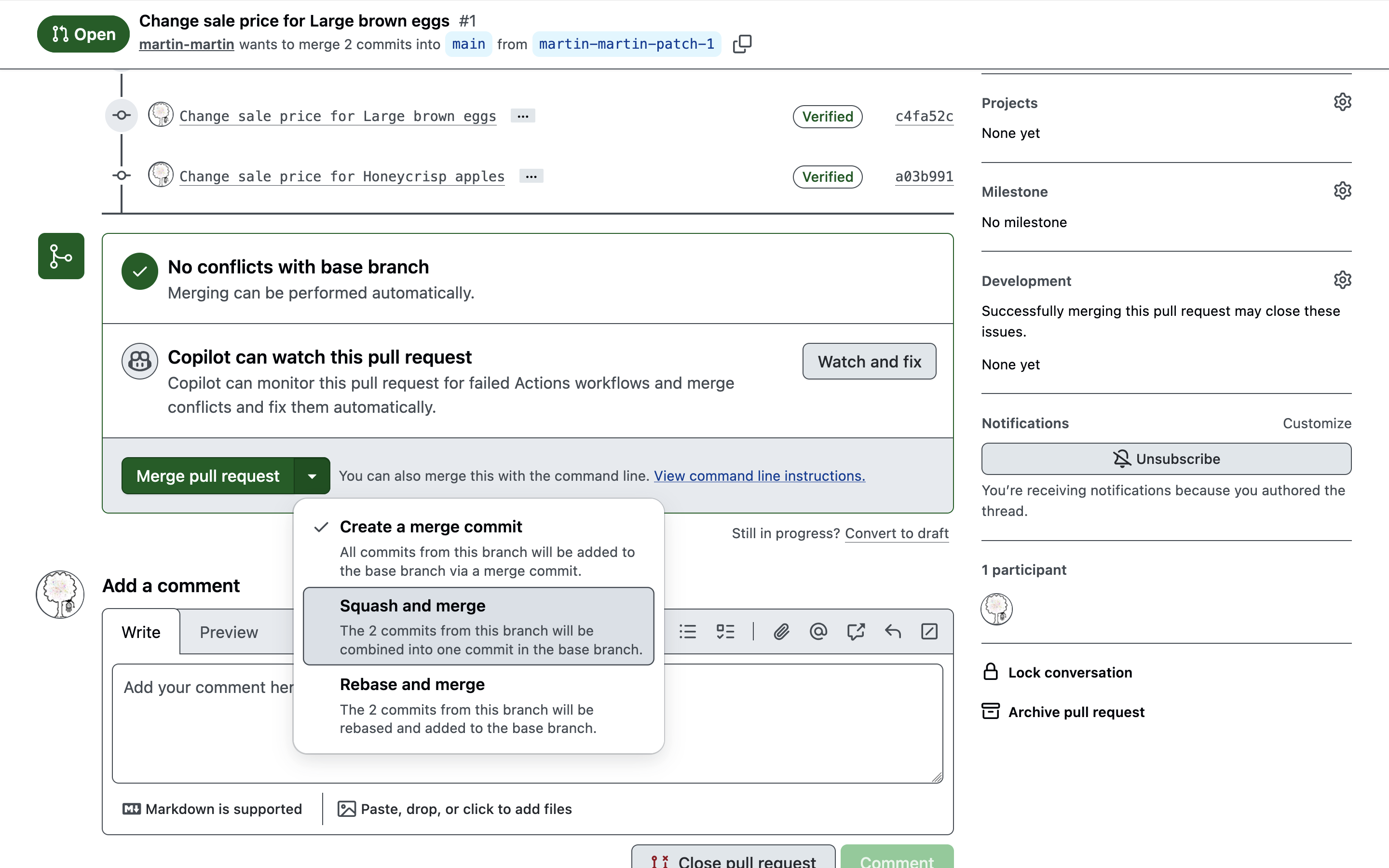
A merge commit is GitHub’s default, but you’ll use squash merges in this course. That way, every commit on main stands for one whole pull request. git log --oneline then shows one line per finished issue, and you can revert a bad change in one step.
Your four separate commits aren’t lost, because the pull request keeps them on its Commits tab.
Merging through pull requests is everyday work on a team, whether you’re heading for a frontend or a full-stack job. If you’d like to weigh the methods before you click, then ask the mentor:
Here’s how to squash and merge your pull request:
-
Click the arrow next to Merge pull request, pick Squash and merge in the menu, and then click the button, which now says Squash and merge.
-
Review the commit message GitHub suggests in the box that opens. The title is your pull request’s title with its number, such as Add ESLint and Prettier (#4), and the description lists your four commits, with a
*before each commit subject and the commit body below. Keep both as they are. -
Below the message, GitHub names the commit’s author email, usually your private
@users.noreply.github.comaddress.

