
In the last lesson, you broke Rosa’s watering rota on purpose, and the browser repaired it without an error. So a page can look right while the browser patches it behind the scenes. You need to write valid HTML rather than rely on how the page looks.
In this lesson, you’ll write the garden’s home page as a complete skeleton you can reproduce from memory, nest its content correctly, and name elements with attributes. Start with the lines every page in this course opens with, before it has any content.
Write the Full Page Skeleton
Every page in this course starts with the same complete skeleton. HTML lets you leave out a few of these tags, and the viewport line is optional, but writing them all out keeps each page explicit.
The last lesson left Chrome on rota.html. Change the end of your preview’s address to index.html, for example, http://127.0.0.1:3000/index.html, and check that the garden’s heading and welcome paragraph appear. Then add the highlighted line to index.html in your garden/ folder:
index.html
<!doctype html>
<html lang="en">
  <head>
    <meta charset="utf-8">
    <meta name="viewport" content="width=device-width, initial-scale=1">
    <title>Elm Street Community Garden</title>
  </head>
  <body>
    <main>
      <h1>Elm Street Community Garden</h1>
      <p>Volunteers grow vegetables and herbs here every season.</p>
    </main>
  </body>
</html>
Here’s what each part does:
<!doctype html>tells the browser to use modern standards. Without it, Chrome switches to quirks mode and imitates the bugs of very old browsers.<html lang="en">is the root element: every other element sits inside it, andlangtells screen readers which language to speak.<head>holds information about the page that isn’t shown in the window. Put<meta charset="utf-8">first, so the browser knows the encoding, the system for representing characters as data, before it reads any text.<meta name="viewport" ...>is the new line. It tells a phone to lay out the page at the width of its screen instead of pretending to be a desktop monitor. That’s all you need about the viewport for now. It matters once you style pages for small screens.<title>names the page on its browser tab, in bookmarks, and in search results.<body>holds everything that appears in the window, and<main>marks the page’s main content. A page has exactly one<main>.
Neither <meta> has an end tag because <meta> is a void element. A void element can’t hold content, so there’s nothing to close. You’ll meet another void element, <img>, when the garden gets photos.
Save, and the page in Chrome looks the same because the new line only affects phones. Now test your memory. In a new file, write the whole skeleton without looking, then compare it with the block above.
Can you write the skeleton from memory?
Nest Elements Inside Each Other
Content has structure. A paragraph belongs to the page, and a stressed word belongs to its paragraph. HTML expresses that by putting elements inside elements. Rosa wants the next work day and the spring seed swap on the home page, each with a title and a paragraph of details.
Each title is an <h2>, a second-level heading that sits under the page’s <h1>. Replace the <main> element in index.html with this one:
<main>
  <h1>Elm Street Community Garden</h1>
  <p>Volunteers grow vegetables and herbs here every season.</p>
  <h2>Next Work Day</h2>
  <p>
    Saturday, November 28, from 9 a.m. to noon. Bring <em>gloves</em>.
  </p>
  <h2>Spring Seed Swap</h2>
  <p>
    Sunday, March 21, from 2 p.m. to 4 p.m. Bring seeds to share.
  </p>
</main>
The <em> around gloves marks stress emphasis, as you saw in the rota.
Before you save, the page still has only the heading and the welcome paragraph:
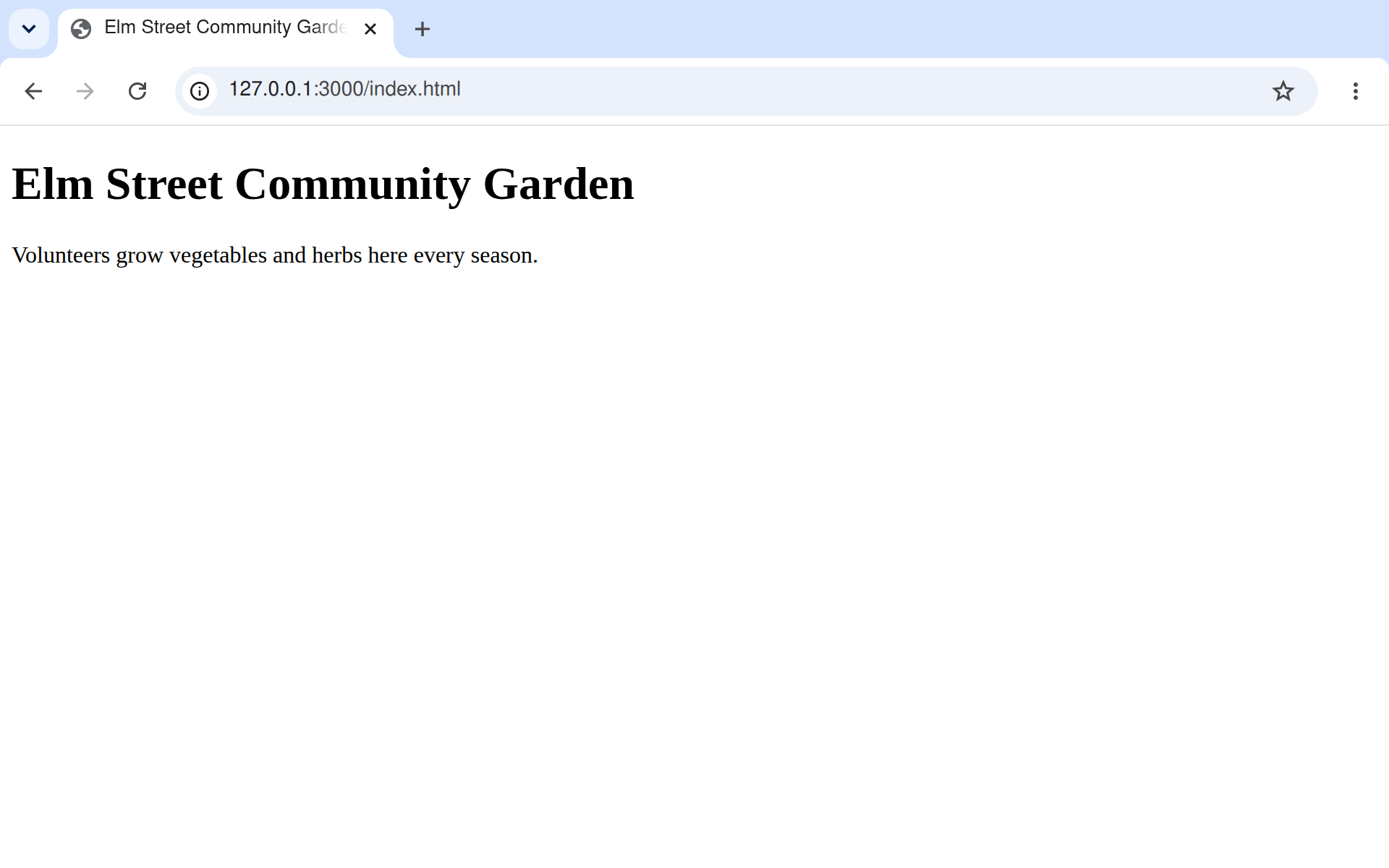
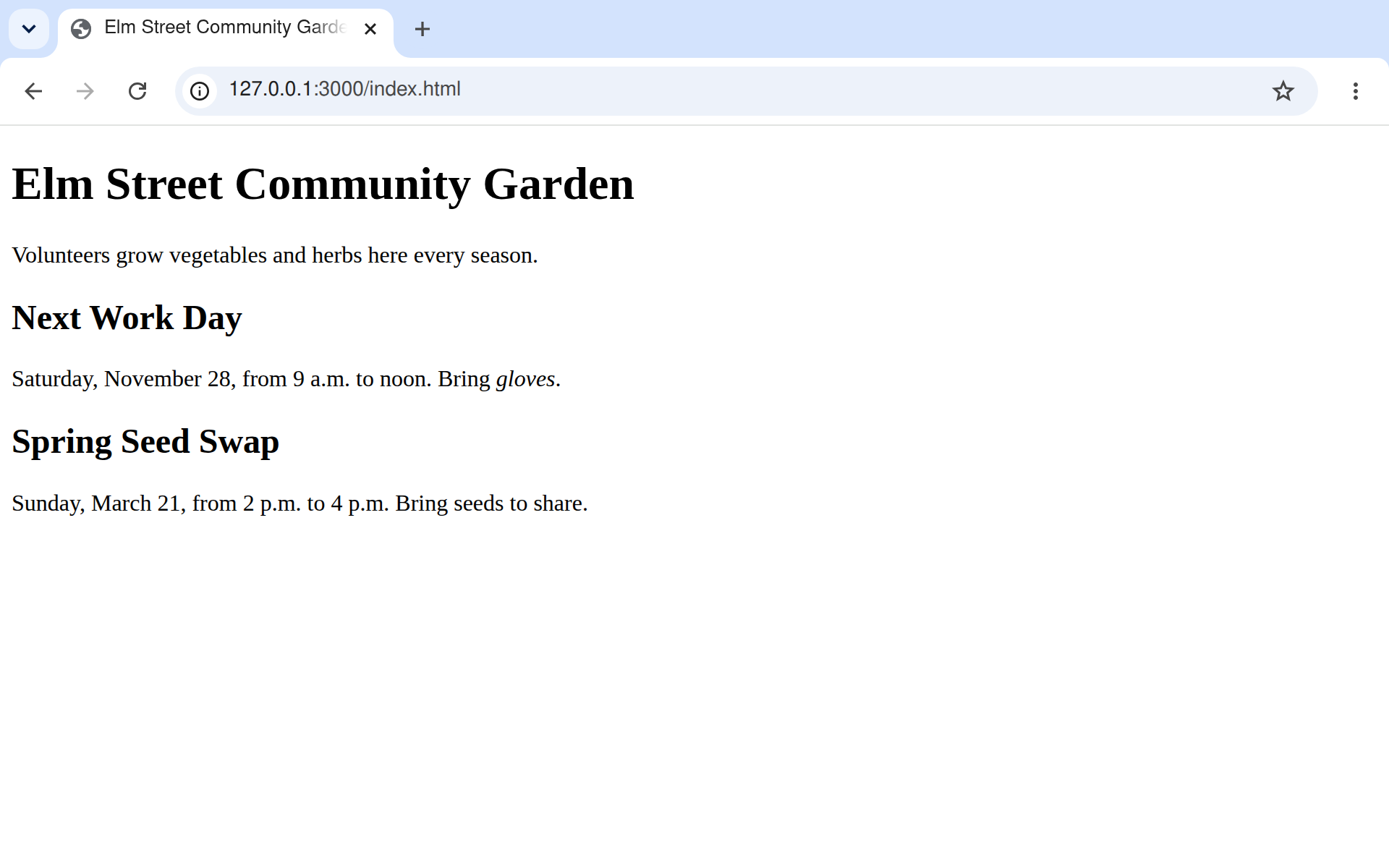
Save, and the page grows two bold subheadings, each followed by its paragraph, with gloves in italics.
Here’s the page after saving:
The <em> is a child of the first event’s <p>, and that <p> is a child of <main>, its parent. As with brackets in code, whatever opens last closes first, so </em> comes before </p>.
Each element also has rules about what it may hold. A <p> can hold text and elements that mark up words, like <em>, but not a heading. If you put an <h2> inside a <p>, the parser closes the paragraph before the heading, even when your tags are balanced. That’s why headings and paragraphs sit side by side inside <main>.
Neither mistake stops the page or logs anything in the Console. The parser repairs it, as it did with the rota. It’s still invalid HTML, and the validator you’ll use later in the course reports it.
Name Elements With id and class
Some elements need a name so a link or a style can target them precisely. You give them these names with attributes in the start tag, like lang on <html>.
An id gives one element a single name with no spaces, like work-day. A link to index.html#work-day jumps straight to the element with that id. Each id must be unique on the page. If two elements share one, the browser shows no error, and the link finds only the first.
A class puts an element in groups. Its value is a list of names separated by spaces, so class="family friendly" means two groups. Both event paragraphs belong in an event group, and the seed swap paragraph also belongs in family-friendly because the event suits children. Styles will use these groups once the site has CSS. That’s all you need about classes for now. Add both kinds of name to the events in index.html:
<h2 id="work-day">Next Work Day</h2>
<p class="event">
  Saturday, November 28, from 9 a.m. to noon. Bring <em>gloves</em>.
</p>
<h2 id="seed-swap">Spring Seed Swap</h2>
<p class="event family-friendly">
  Sunday, March 21, from 2 p.m. to 4 p.m. Bring seeds to share.
</p>
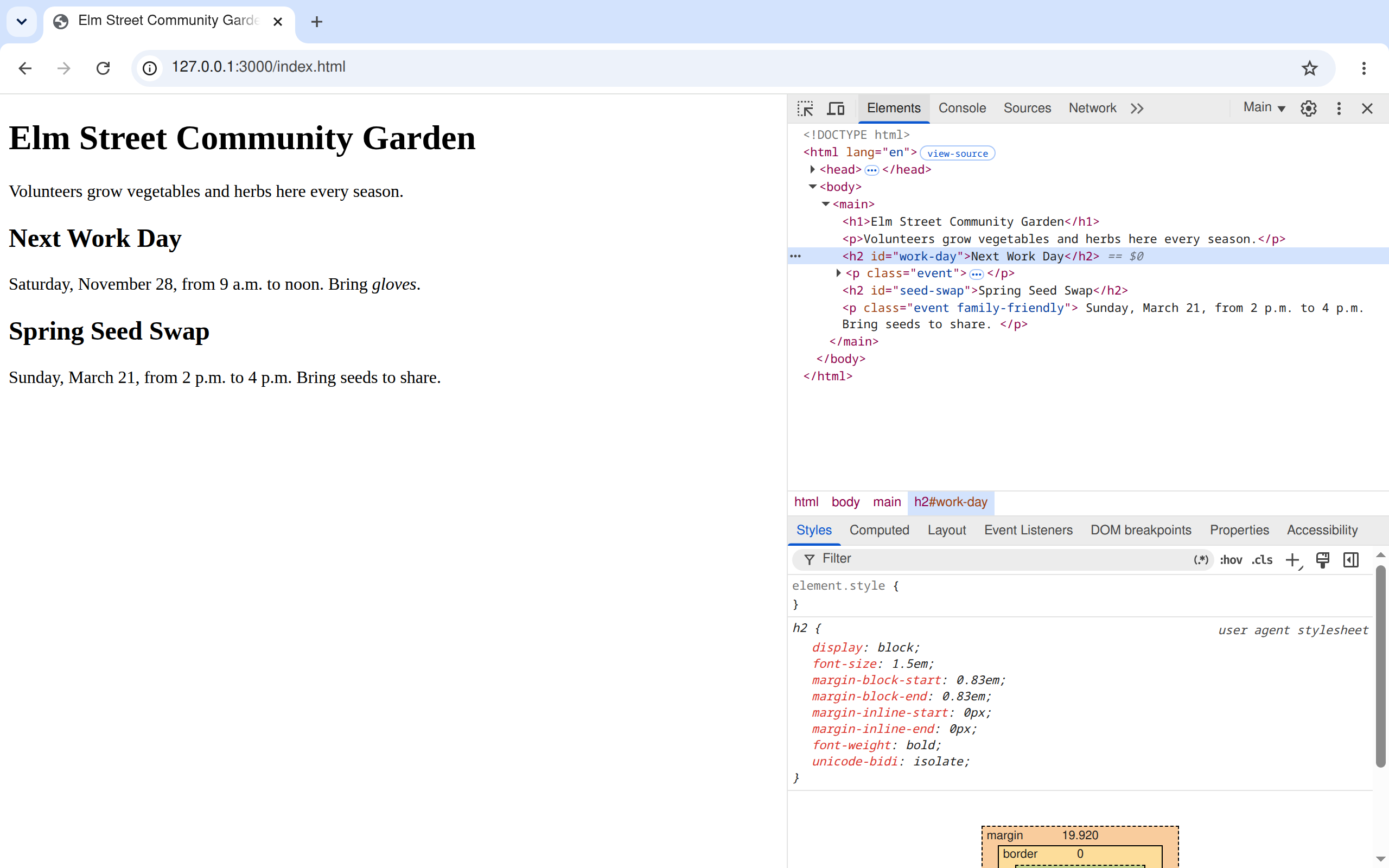
Save, and the page looks the same because these attributes only name elements and groups. Inspect the work day heading to find id="work-day" in the Elements panel.
Here’s the heading selected in the tree:
Now write an event yourself for Rosa’s composting workshop on Saturday, April 10, from 10 a.m. to noon. It’s open to families and free, so stress that word. At the end of <main>, add a heading with its own id and a paragraph in both groups, then inspect the new elements and check:
- The
<h2>and<p>sit inside<main>beside the other events, with the<em>inside the<p>. - The
idis new and has no spaces. - The
classshowseventandfamily-friendly.
If an element shows up where you didn’t put it, the parser has repaired your markup, so compare your tags with the work day’s.
Your home page now has a complete skeleton, nested content, and named elements. But what does the parser make of a slash at the end of a tag, extra spaces, or a < in your text? The next lesson, Read Syntax Like the Parser, shows you.
