
Your garden page is open in Chrome, and the Elements panel shows its elements nested inside each other. The last lesson ended on a clue. The panel looks a lot like your file, but it isn’t your file. So what did the browser make from it?
That answer changes how you find mistakes in HTML. In this lesson, you’ll follow a file from your disk to the screen, watch what the browser does with a mistake, and choose the right view for the question you’re asking.
Follow the File to the Screen
A programmer’s first guess is often that the browser runs an HTML file the way an interpreter runs a script: top to bottom, stopping at the first error. It doesn’t, and the difference explains a lot of what you’ll meet in this course.
When Chrome opens http://127.0.0.1:3000/index.html, three things happen. First, it fetches the file from Live Preview’s server. Then its parser reads the text and builds a tree of elements: <html> at the root, <head> and <body> as its children, <main> inside <body>, and so on down to each piece of text.
Finally, it styles that tree, with its own default styles for now, and draws it in the window. Here’s that journey, with the views that show the file and the tree:
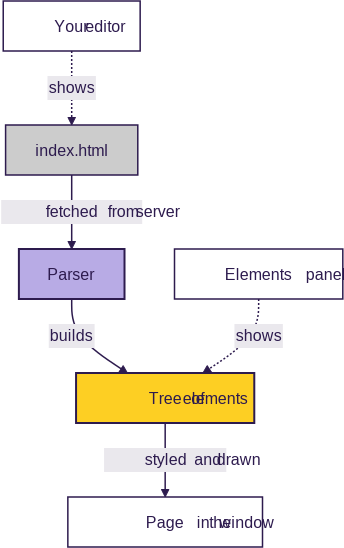
You know trees from programming, and this is an ordinary one: every element has one parent and any number of children. What’s unusual is that nothing in it runs. HTML has no variables, no loops, and no conditions. It describes a document, and the tree is that description in a form the browser can work with.
The Elements panel shows you the tree, not the file. You can confirm its shape on your own page: click the small triangle beside <main> in the Elements panel, and <main> folds away with its <h1> and <p>, because they’re its children.
Investigate a Tag Left Open
Next, see what happens when the description has a mistake. Rosa has started a page for the watering rota herself, and she sends you her draft to check before it joins the site. She wanted the word daily to stand out, so she used <em>, the element that marks words you’d stress when you say them. Browsers show it in italics by default.
Create rota.html in your garden/ folder, next to index.html, and paste in her draft. Don’t type it, since VS Code closes tags as you type:
rota.html
<!doctype html>
<html lang="en">
  <head>
    <meta charset="utf-8">
    <title>Watering Rota</title>
  </head>
  <body>
    <main>
      <h1>Watering Rota</h1>
      <p>Watering is <em>daily</p>
      <p>Weeding is weekly</p>
    </main>
  </body>
</html>
Before you save, check that the first paragraph reads exactly <p>Watering is <em>daily</p>, and delete any </em> the editor added. Then look at that line before you open the page. Rosa’s <em> starts before daily, but no </em> ends it.
In a program, an unclosed bracket like that is a syntax error: nothing runs, and you get a message pointing at the line. This is a short detour into a broken page, because a mistake shows you more about what the browser does than a correct page can.
Open the draft in Chrome by replacing index.html with rota.html at the end of your preview’s address, for example, http://127.0.0.1:3000/rota.html. DevTools stays open when you change the address. If it closed, press F12 again. Then check three things, in this order, and note what you find before you read on:
- The Console: Click the Console tab. Is there an error or a warning about the missing tag?
- The page: Which words are in italics?
- The tree: Click the Elements tab, then click the triangles beside
<body>and<main>to expand them, and expand any<em>you find. How many<em>elements are there, and where?
In Chrome, the Console is empty, without a single error or warning. The page is all there, with Watering is upright and daily in italics, as Rosa intended. But the whole second line, Weeding is weekly, is in italics too, which she never asked for.
Here’s the page with the empty Console beside it:
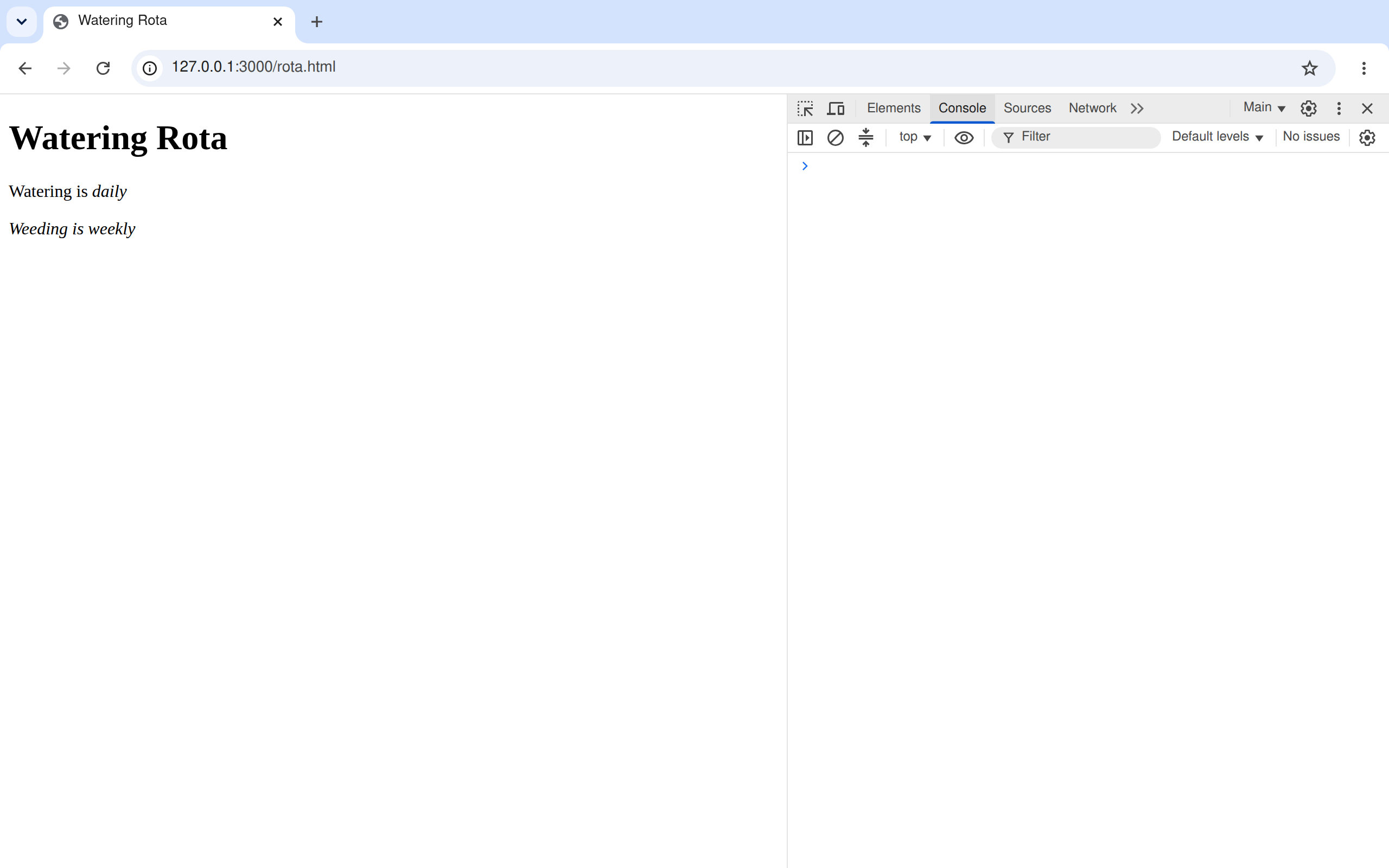
The page didn’t stop, and nothing complained. That’s because the parser is built to repair whatever it’s given and draw something anyway.
Here, it reached </p> with the <em> still open, so it closed the <em> to end the paragraph. However, it remembered that emphasis was still switched on, so when more content followed, it opened a new <em> to carry it on.
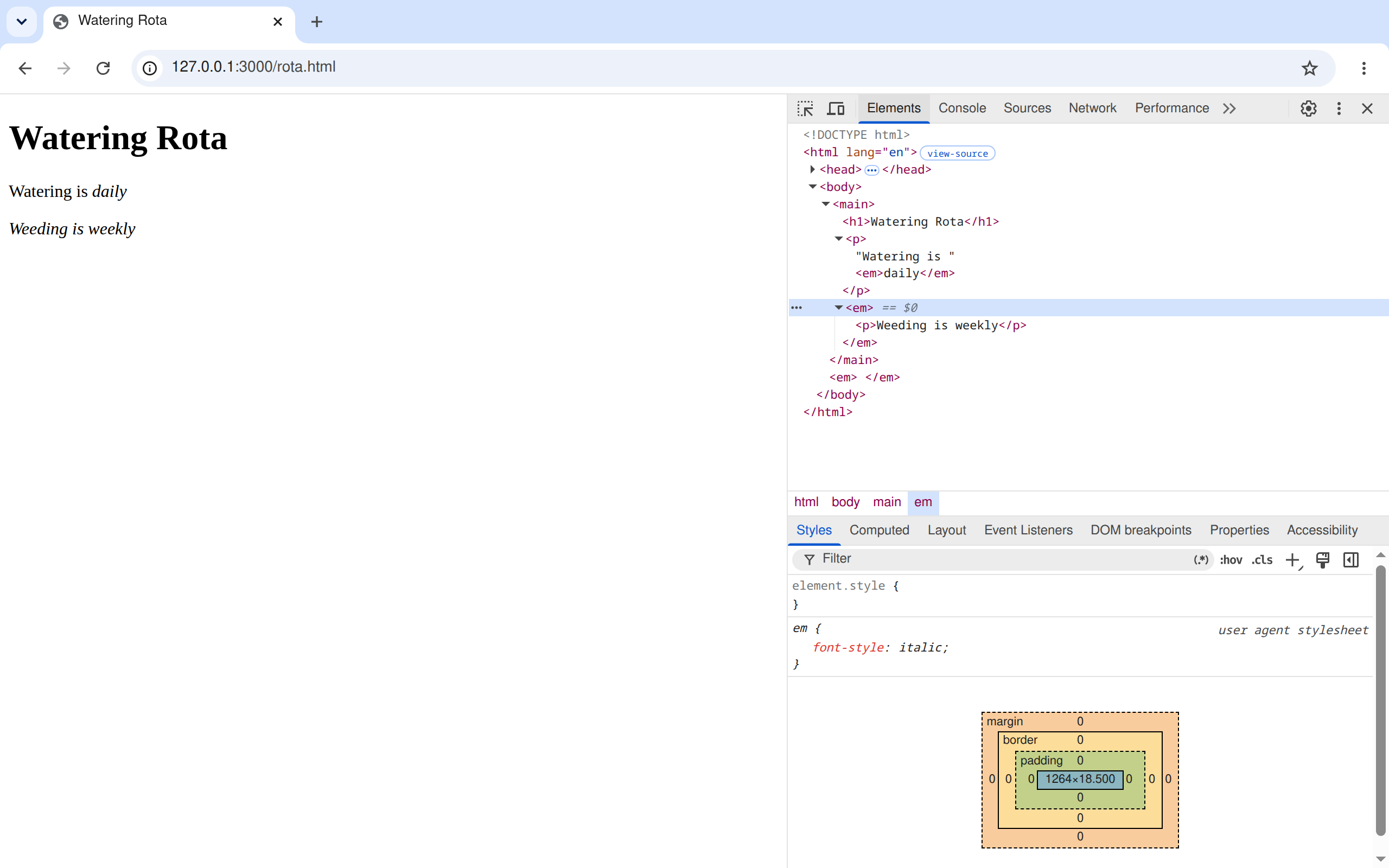
The content that followed was the linebreak and spaces between </p> and the next <p>, which you can’t see on the page. To the parser, they were text, so the new <em> opened right there, before the second paragraph started, and the paragraph ended up inside it. Written out as HTML, the tree in the Elements panel looks like this:
<main>
  <h1>Watering Rota</h1>
  <p>Watering is <em>daily</em></p>
  <em>
    <p>Weeding is weekly</p>
  </em>
</main>
<em></em>
The second <em> wraps the whole second paragraph, which is why that paragraph is in italics. A third <em>, holding only the linebreaks after </main>, follows it for the same reason. Neither is in Rosa’s file.
As a programmer, you expect an error message, but an HTML mistake never produces one. You find the mistake by looking at the page and the Elements panel, and, later in the course, with a validator that checks your file against HTML’s rules.
Here’s the repaired tree in the Elements panel:
If the repair still feels odd, the mentor can walk you through it. The button below opens a chat with this question already typed:
Compare the File and the Tree
The Elements panel showed you the repaired tree. To see the file the browser received, leave Rosa’s draft unfixed, then right-click the page and choose View page source, or press Ctrl+U (Cmd+Option+U on macOS). A new tab opens and shows the HTML as the server sent it, unclosed <em> and all, plus the <script> line that Live Preview adds on the way.
It looks like this:
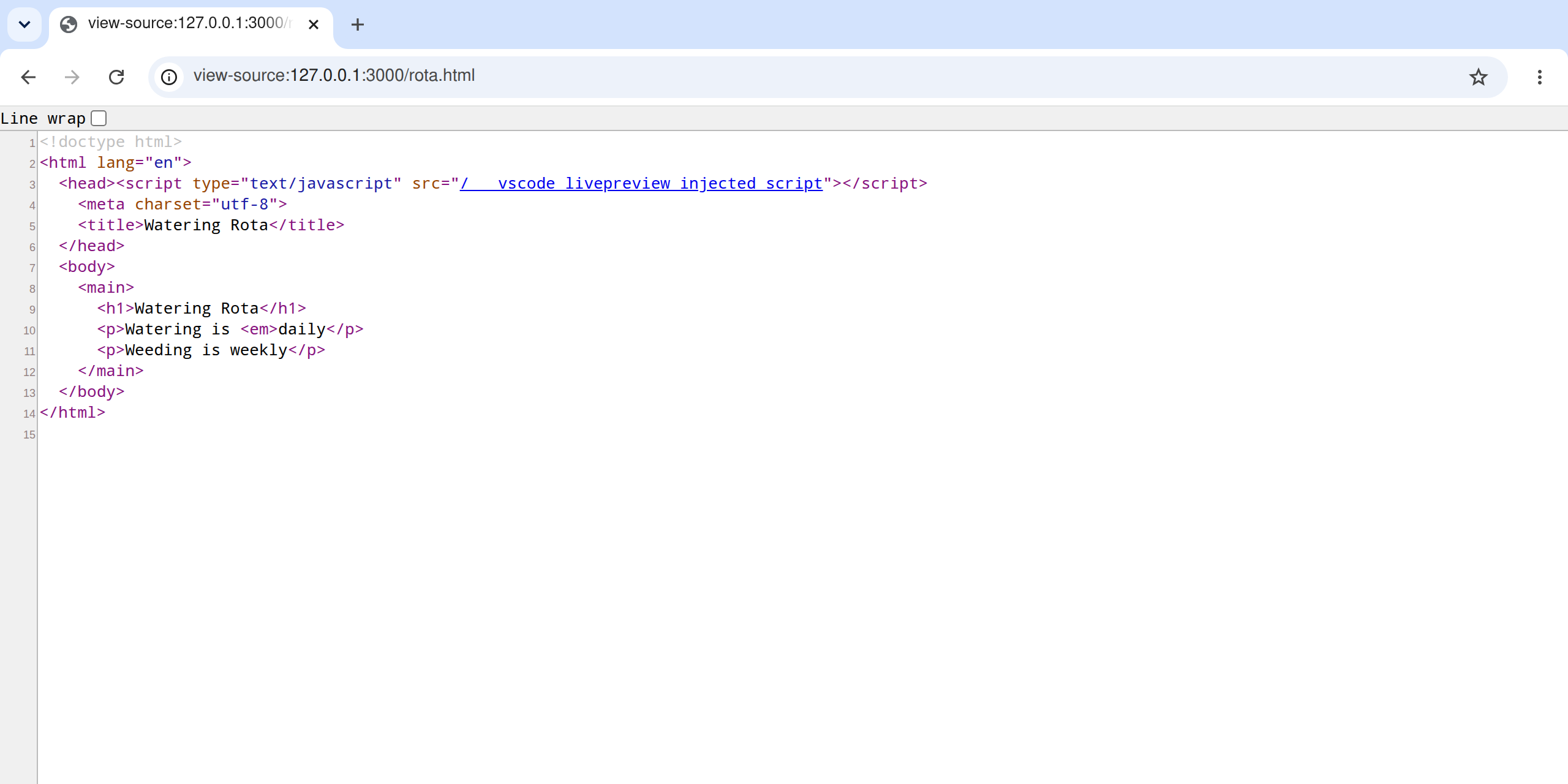
Each view answers a different question. View source shows the HTML the server sent, which is your file’s text with no repairs, plus anything the server added on the way, like Live Preview’s <script>. Your editor shows the file itself, exactly as you wrote it.
The Elements panel shows the tree: what the browser built, after its repairs, and what it’s drawing. When the page looks wrong, start in the Elements panel, because that’s what the browser works with. Then go back to your file to find the mistake that produced it.
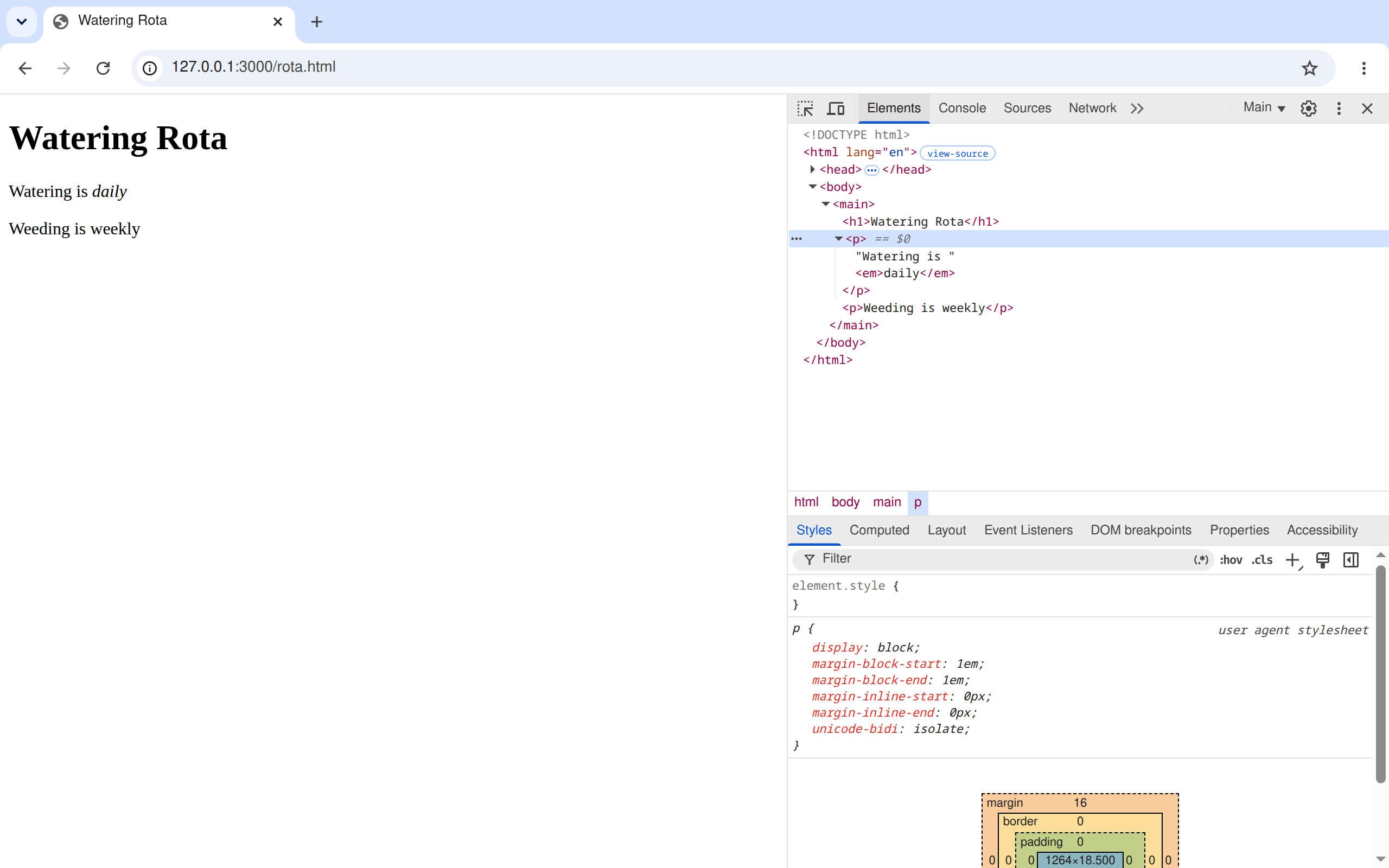
Now fix Rosa’s draft. Close the view source tab to get back to the rota page with DevTools beside it. In VS Code, add the missing </em> after daily, so the line reads <p>Watering is <em>daily</em></p>, and save. Only daily is in italics now. In the Elements panel, expand <body> and <main> again if they folded. There’s a single <em> inside the first <p>, and the repairs are gone.
Here’s the fixed page and its tree:
To check that the difference between the two views has landed, try explaining it to the mentor:
Can you tell the file from the tree?
You’ve seen that the browser always builds a tree and repairs malformed HTML, so a page that looks fine can still be wrong underneath. In the next lesson, Write a Page Skeleton, you’ll learn what a correct page’s skeleton looks like, line by line, so the browser has nothing to repair.
