
In the last lesson, Tab walked you through every link and control on the work day page. With a screen reader, Tab stops at the same places, and the reader also reads the headings, text, and images in between. But it can’t describe the blue outline or the text box. Instead, it announces what each element is and what it’s called.
In this lesson, you’ll predict that pair for any link, button, field, or image from its HTML and confirm it in DevTools. You’ll also see when ARIA attributes change what’s announced and why a native element is still the better fix. Start with the Email field, which you gave an error message.
Read a Field’s Role and Name
A screen reader can’t read your pixels, so it needs another source. From the elements, Chrome builds the accessibility tree, which screen readers and other assistive technology read. Each node has a role, the kind of thing it is, and a name, the words used for it. You can read both in the Accessibility pane.
Open events/work-day.html with Live Preview in Chrome. Right-click the Email field and choose Inspect, which selects the <input id="email"> line in the Elements panel. In the pane that holds the Styles tab, click Accessibility. If you don’t see that tab, click the » at the end of the row. Then read Computed properties:
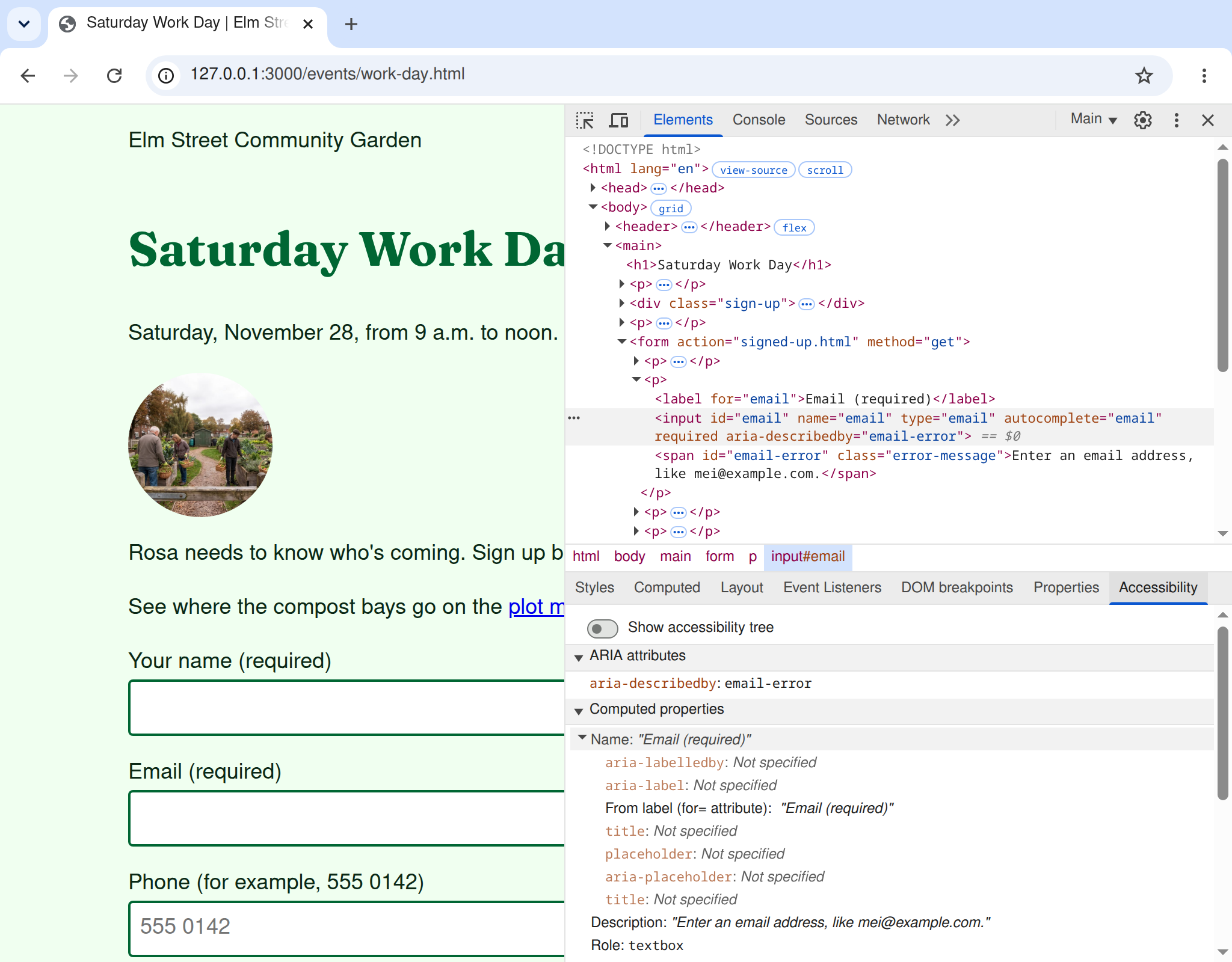
The role is textbox, from the <input> element. The name is Email (required), and the line under it, From label, shows it comes from the <label>. The error message you tied to the field with aria-describedby shows up separately, as the field’s description, which a screen reader reads after the name and role.
Every element gets its role this way. The number field is a spinbutton, the <select> is a combobox, the <fieldset> is a group, and the <button> is a button. The role also tells a screen reader user which keys work, such as the arrow keys in a spinbutton.

