
Your sign-up form now has a control for every question Rosa asks, but it accepts far too much. Click Sign up on an empty form, and the browser happily sends name=&email=. Rosa would get a sign-up from nobody, with no way to reach them.
In this lesson, you’ll make the browser check the form before it sends anything. It’ll refuse a missing name or email, an email that doesn’t look like one, and hours that aren’t a whole number from 1 to 8. You’ll also see why those checks protect nothing on their own. Start with the fields Rosa can’t do without.
Require a Name and an Email
As a programmer, you’d normally check input with an if before using it. In a form, you describe the rule with an attribute instead, and the browser runs the check when the visitor submits. The required attribute says a field can’t be left empty. It’s a Boolean attribute: its presence switches it on, with no value.
In events/work-day.html, add it to the name input and add “(required)” to its label, so visitors see which fields they must fill in before they submit:
<label for="name">Your name (required)</label>
<input id="name" name="name" autocomplete="name"
  required>
Then do the same for the email input and its label:
<label for="email">Email (required)</label>
<input id="email" name="email" type="email"
  autocomplete="email" required>
Save, reopen the page from the navigation menu, and click Sign up without typing anything. The address doesn’t change. Instead, the browser moves the cursor into the first field that fails and shows its own message beside it:
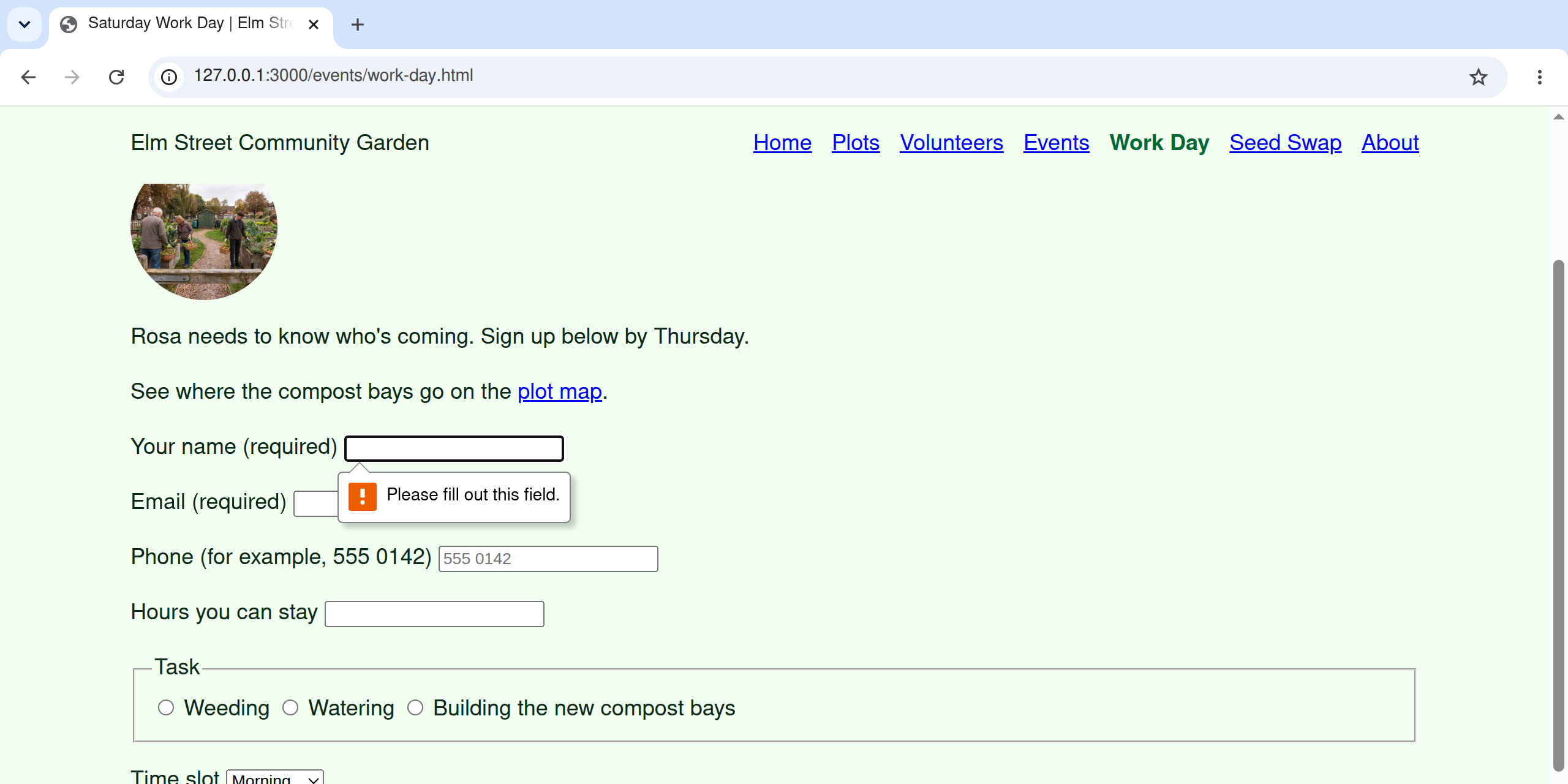
Type Mei Lin and submit again. Now the bubble moves to Email. Type mei.lin there, and the message changes to “Please include an ‘@’ in the email address. ‘mei.lin’ is missing an ‘@’.” The type="email" you added earlier was checking the format all along, but an empty field gave it nothing to check. Finish the address as [email protected], and the form submits.
The check is loose. mei.lin@example passes because the browser checks the shape of an address, not whether it exists.

