
In the last lesson, the “Needs water” badge on plot 7 ignored its width and top margin until display: inline-block turned it into a box that respects both properties. The display property decides what kind of box an element gets. It can also decide that an element gets no box at all.
Pages hide things all the time: an event that isn’t confirmed yet, a word meant only for people listening to the page. You might expect one switch for that, like a visible flag set to false. CSS has several, and they differ in whether the hidden element keeps its space and whether a screen reader still reads it.
You’ll compare four of them and choose the one that fits each job. Start with the most thorough one, which removes an element’s box.
Take a Card Off the Page
The seed swap’s date isn’t confirmed yet, and Rosa would like its card off the events page until Ana confirms it. Deleting the HTML would work, but then someone has to type it all again later. The hidden attribute keeps the markup and takes the element off the page. In upcoming.html, add it to the seed swap’s opening tag:
<article class="event-card" hidden>
  <h3>Spring Seed Swap</h3>
The attribute has no value. Its presence alone says that the content isn’t relevant right now. Save, and the seed swap card disappears. The footer moves up to take its place:
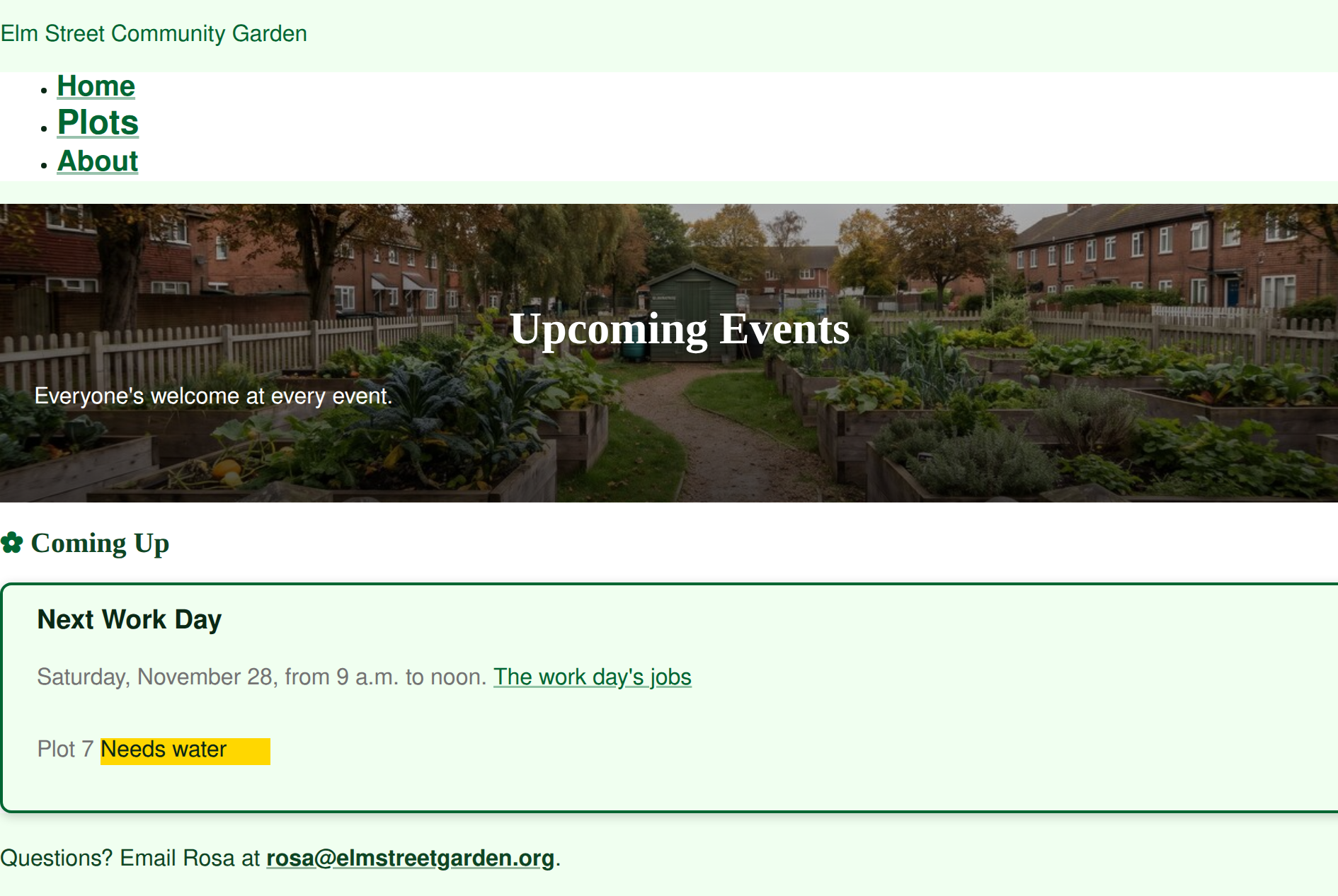
The <article> is still in the Elements panel because the HTML hasn’t changed. But it has no box, so it takes no space, and nothing on the page shows where it was. A screen reader, the software that reads a page aloud for people who can’t see the screen, skips it too. The card is gone for everyone.
The hidden attribute works through CSS. The browser’s default stylesheet has a rule, [hidden] { display: none; }, and the display value none is what removes the box.
You can write display: none in your own stylesheet too, with the same effect. Use hidden when the content itself isn’t relevant for now, and display: none when a rule in your stylesheet decides what to show.
The cascade you already know can undo hidden. Your stylesheet’s rules beat the browser’s defaults, so any display you set on an element overrides it. Try adding hidden to the badge’s <span>, and save. The badge stays on the page because the .badge rule’s display: inline-block wins.

