
The cards on the events page have a parent that arranges them: flow stacks them, flexbox lines them up, and grid puts them in columns. So far, each of those layouts has given every child a place of its own. Sometimes you want one small box placed on top of another, in a spot you choose.
Rosa wants a Family-friendly badge in the top-right corner of the Plant the Potatoes card, so parents can see at a glance which work day suits children. In this lesson, you’ll pin that badge to the card’s corner, find out which box its position is measured from, and learn to predict where a positioned box lands. Start by taking the badge out of the flow.
Take the Badge Out of the Flow
Right now the card uses normal flow, which will stack the badge below the heading. The badge needs to sit on top of the card’s content in the corner, and the position property can put it there by taking it out of the flow.
Before you add the badge, turn off the squeezed row of cards from the last two lessons, so that each card has the column’s full width again. In events/layout.css, wrap the .event-list rule in a CSS comment:
events/layout.css
/* Layouts to try on the events pages */

/* Off while you pin the badge:
.event-list {
  display: flex;
}
*/
The rule stays in the file for when flexbox gets its own lessons. Next, add the badge to the Plant the Potatoes card in events/upcoming.html, right after its heading:
<article class="event-card">
  <h3>Plant the Potatoes</h3>
  <p class="badge">Family-friendly</p>
  <p>
    <time datetime="2027-04-03T09:00">Saturday,
      April 3, from 9 a.m.</time> to noon.
    <a href="work-day.html">The work day's jobs</a>
  </p>
</article>
The badge is a short paragraph, after the heading in the HTML, so a screen reader reads the event’s name, then Family-friendly, then the date, wherever the badge appears on screen.
Now give the badge its looks in layout.css, below the commented-out rule, along with one line of positioning:
.badge {
  position: absolute;
  margin: 0;
  padding: 2px var(--space-s);
  border-radius: 4px;
  background-color: var(--green);
  color: white;
  font-size: 0.875rem;
  font-weight: bold;
}
Every element starts with position: static, which means it sits in normal flow, where its parent’s layout puts it. The value absolute takes the badge out of the flow. Save, and scroll to the Plant the Potatoes card:
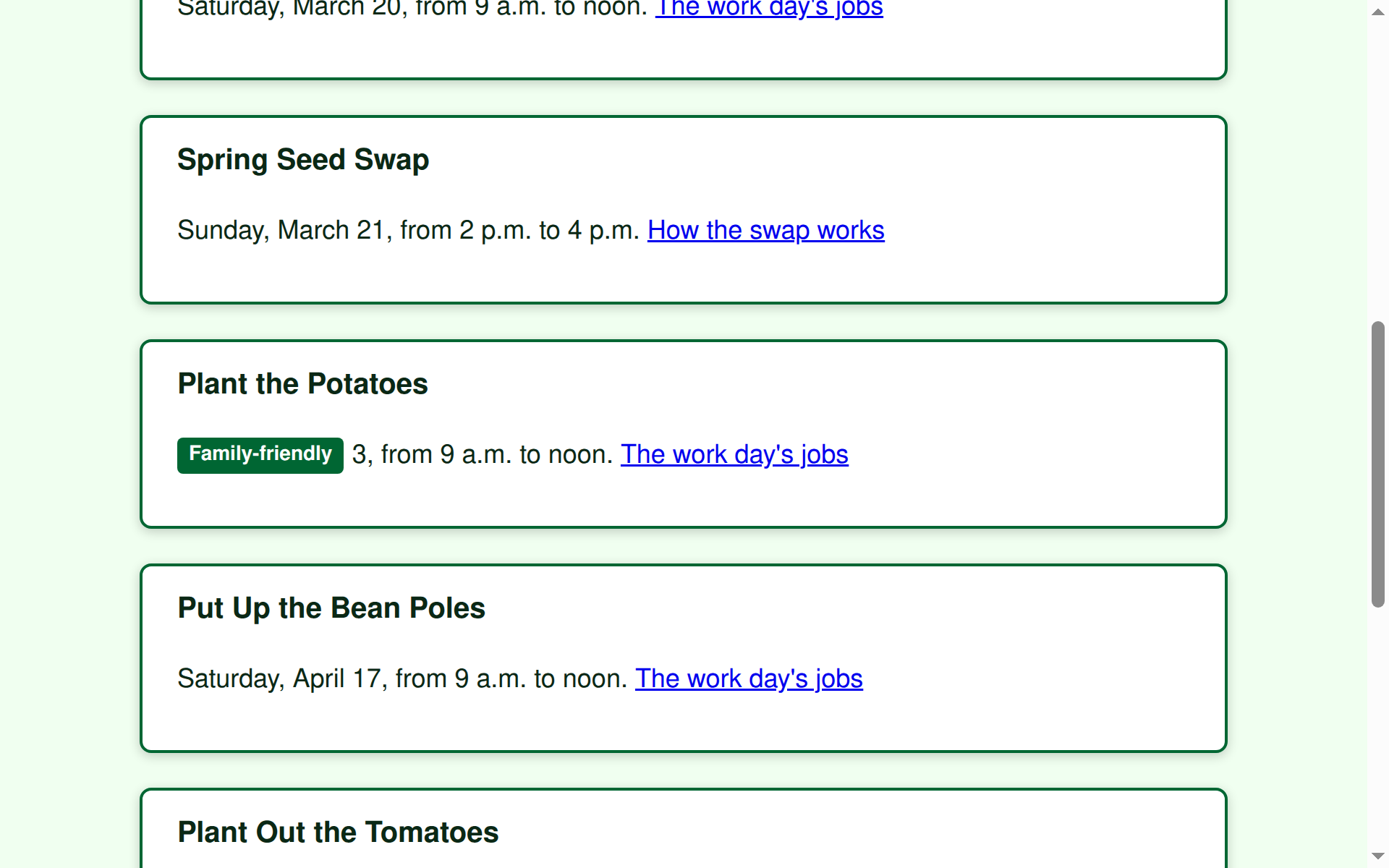
The badge lies on top of the date line. It starts where flow would have put it, below the heading, but it no longer takes up any space there. The date line moves up into the spot the badge left, and the card is as short as the others. Out of the flow means that the card’s layout ignores the badge, and the badge ignores the card’s layout.
The badge has also shrunk to fit its text. With no width set and no insets yet, an absolute box like this badge is only as wide as its content.
Pin the Badge to the Card’s Corner
An absolute box stays where flow would have put it until you tell it where to go. You do that with the insets, four properties named after the edges of a box: top, right, bottom, and left. Each one sets how far the badge’s edge sits from the same edge of the box it’s placed against. The inset shorthand sets all four in one line.
Which box is that? You might expect the badge’s parent, the card, but an absolute box is placed against its containing block. With the styles in this lesson, that’s the nearest ancestor whose position isn’t static. A few other properties can also create a containing block, but none of them appears here. So the card has to become a positioned box too.
Add two insets to the .badge rule, below position: absolute, and a new rule that positions the cards:
.badge {
  position: absolute;
  top: var(--space-s);
  right: var(--space-s);
  /* ... */
}

.event-card {
  position: relative;
}
Save, and the badge sits in the card’s top-right corner:
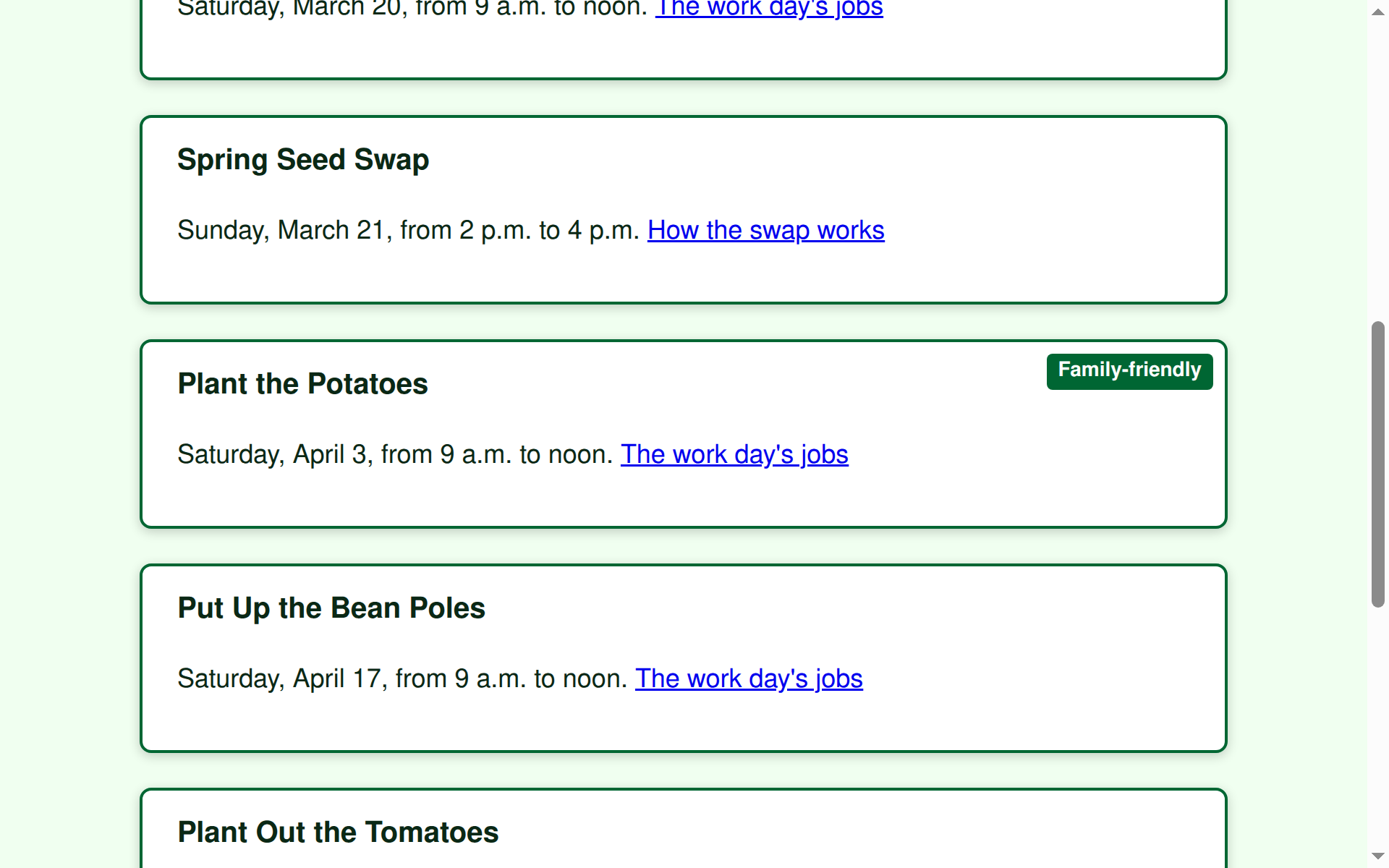
The value relative keeps a box in the flow. With insets, it would shift the box from its usual spot, and the space it left behind would stay empty. Without insets, it doesn’t move the box at all. Every card stays exactly where it was, but each one is now positioned, so the Plant the Potatoes card is the badge’s containing block. The insets are measured from the inside of the card’s border, so the badge sits eight pixels in from the corner.
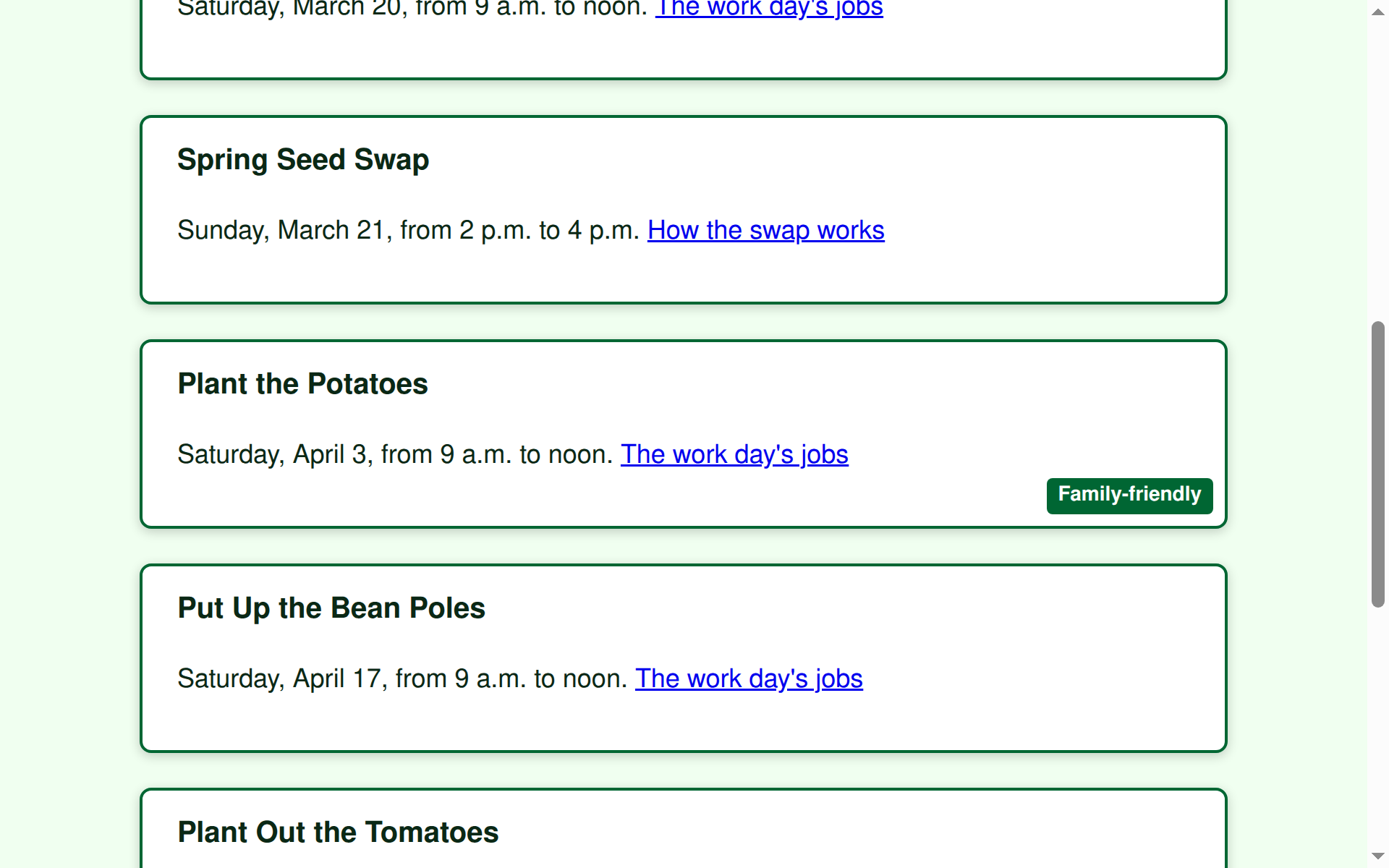
The insets work from any edge. Change top to bottom in the .badge rule, and the badge moves to the card’s bottom-right corner, eight pixels in from the bottom and the right. The date line doesn’t move, because the badge takes up no space in the card’s flow:
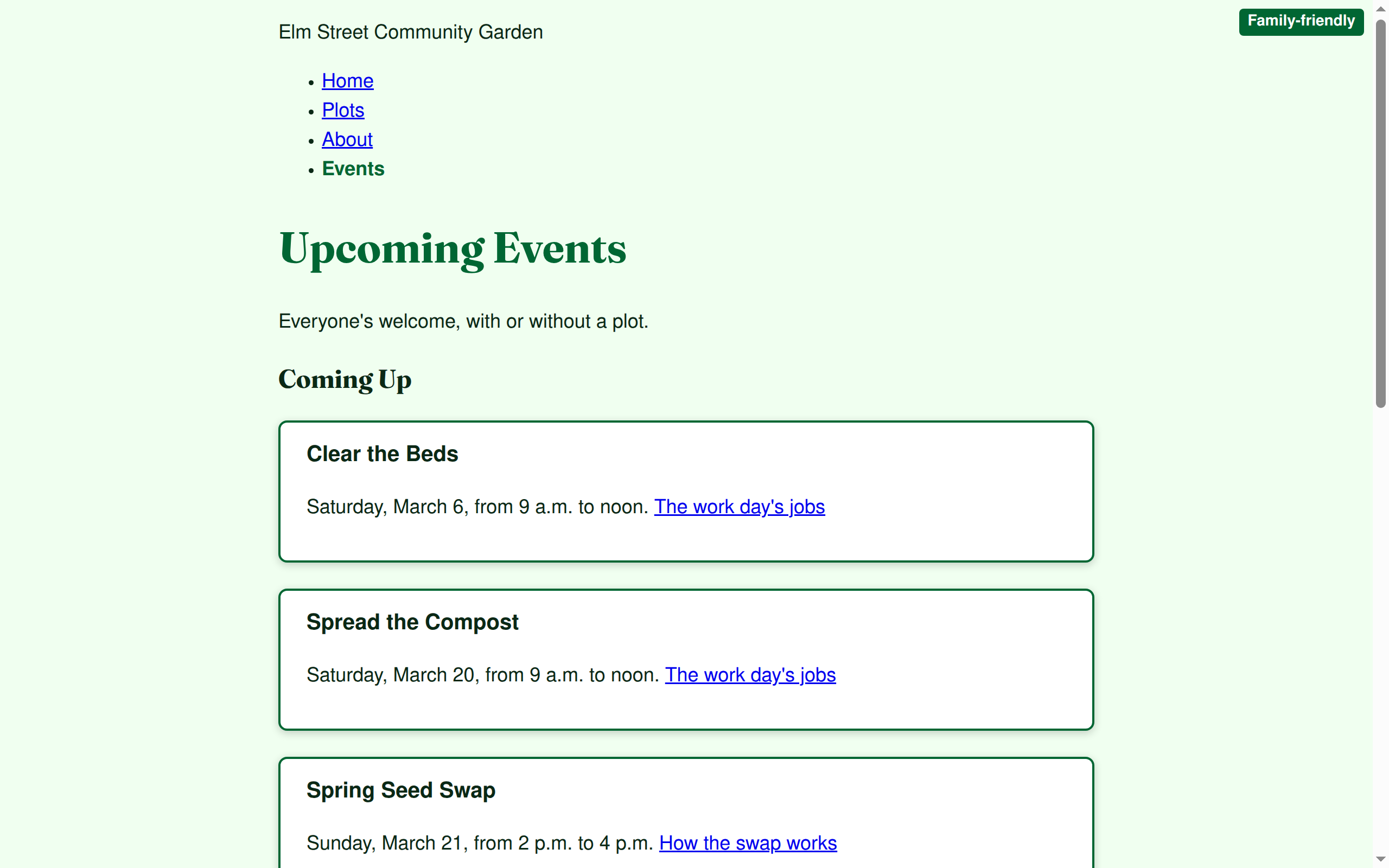
Change bottom back to top before you go on. Don’t assume that an absolute box is placed against its parent. Without the card’s position: relative, no ancestor is positioned. The containing block is then the page’s starting rectangle, which is the size of the browser window, and the badge lands in the page’s top-right corner:
Even when the badge is pinned to the card’s corner, the card doesn’t grow to make room for it. If the heading were long enough, it would run underneath the badge. A parent doesn’t reserve space for a box that’s out of the flow.
So positioning suits small extras like this badge, not the layout of a page. You could place each of the seven cards with position: absolute and its own left value, the way a program sets coordinates. The event list would then have nothing in its flow to make room for, so its height would drop to zero, and the seed swap news would slide up underneath the cards. Laying out the cards stays the parent’s job.
If the containing block still feels like an odd rule, the button below opens a chat with the mentor, with the question ready to send:
Fix a Box to the Window
The badge scrolls with the page because its containing block, the card, does. Sometimes you want the opposite, a box that stays in view while the page scrolls under it. That’s position: fixed, whose containing block is normally the browser window, whatever its ancestors’ position values are. A few ancestor styles can change that, but none of them is on this page.
You can confirm this with the badge. In the .badge rule, change absolute to fixed, save, and scroll down the page:
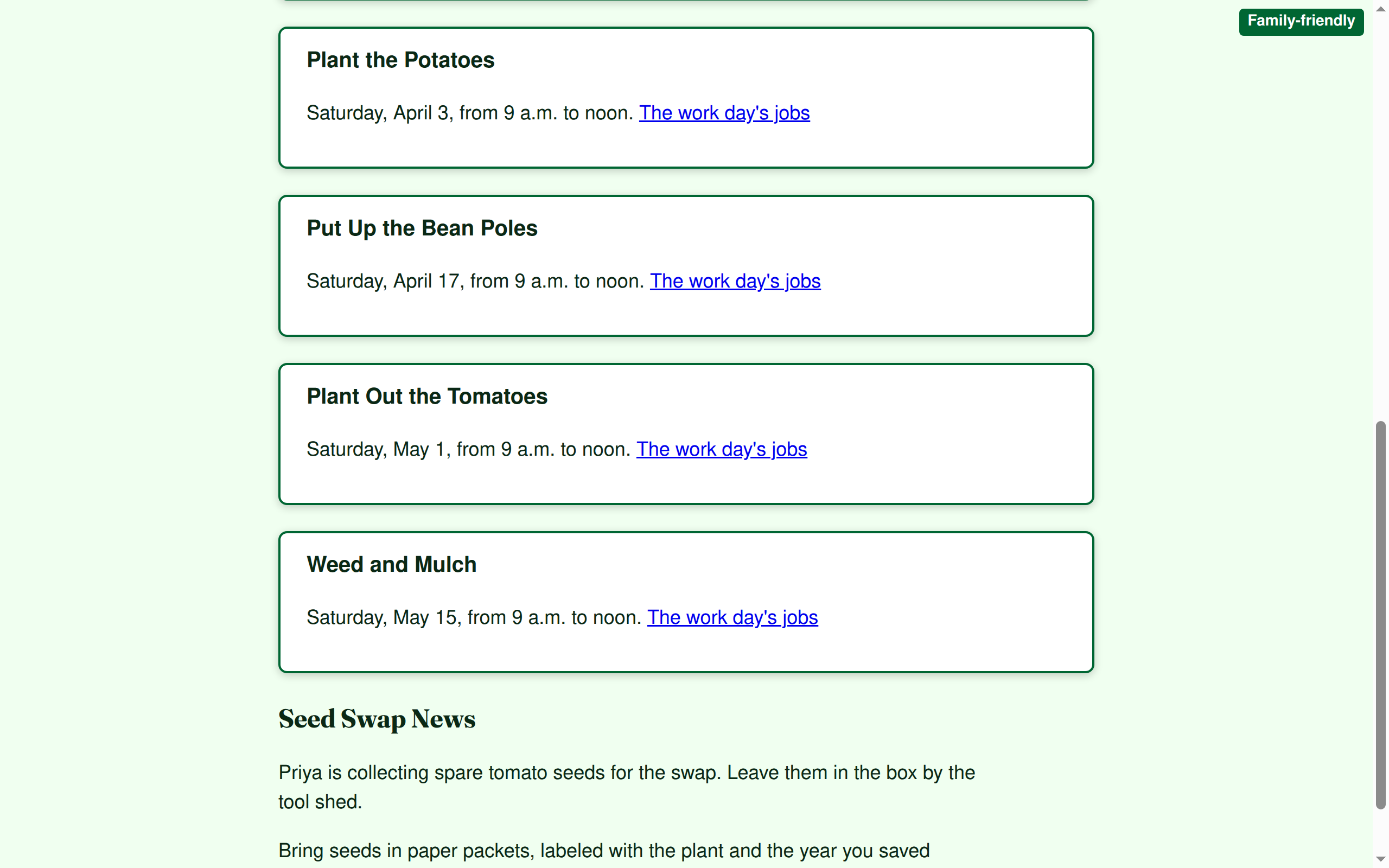
The badge leaves the card, even though the card is positioned, and on this page it stays in the window’s top-right corner however far you scroll. A fixed box is out of the flow too, so it covers whatever scrolls underneath it.
Because a fixed box covers content, use it sparingly. There’s a better tool for keeping a header in view as the page scrolls. You’ll meet it soon, so that’s all you need about fixed for now. Change fixed back to absolute, and save. The badge returns to its card.
The finished layout.css has the commented-out flexbox rule and the rules for the badge and cards:
events/layout.css
/* Layouts to try on the events pages */

/* Off while you pin the badge:
.event-list {
  display: flex;
}
*/

.badge {
  position: absolute;
  top: var(--space-s);
  right: var(--space-s);
  margin: 0;
  padding: 2px var(--space-s);
  border-radius: 4px;
  background-color: var(--green);
  color: white;
  font-size: 0.875rem;
  font-weight: bold;
}

.event-card {
  position: relative;
}
Leave the file this way for now.
Predict Where the Badge Lands
To predict where a positioned box goes, read its position value, find its containing block, and measure its insets from that block’s edges. Answer the first question before you try it in layout.css:
- Predict where the badge appears if you move
position: relativefrom the.event-cardrule to a new.event-listrule. - In a sentence or two, explain why the Plant the Potatoes card isn’t any taller with the badge in it.
- The badge appears in the top-right corner of the first card, Clear the Beds. The event list is now the nearest positioned ancestor, so it’s the badge’s containing block. The list’s top-right corner is also the top-right corner of its first card, so the badge lands on the wrong event.
position: absolutetakes the badge out of the flow. The card’s layout ignores it, so the card is only as tall as its heading and date line, and the badge sits on top of them.
If you tried the first one, move position: relative back to the .event-card rule. For more practice predicting where a positioned box lands, the button below starts a short quiz:
The badge now sits on top of the card, and a fixed box can sit on top of the whole page. When two positioned boxes overlap, one of them has to be in front. In the next lesson, Stack Layers With z-index, you’ll find out what decides which one shows on top.
