
In Load a CSV File, the page read Ayumi’s list with fetch(), because the file sat in the project folder that Live Preview serves. The next time Ayumi sends Sam a list, though, it lands in Sam’s Downloads folder, and Sam shouldn’t have to copy files into the project to use them.
In this lesson, you’ll add a Choose File control to Sam’s recipe box, read the file Sam picks, and add its recipes to the box. You’ll also make the box turn away a file it can’t use, with a message on the page instead of a crash. Start with the question of what a page can reach on its own.
Let Sam Pick the File
A page and a script you run on your computer, such as a Node.js program, live in different places. A Node.js program can open a file by its path, as long as your account has permission to read it. A page can’t, whatever the permissions, because it runs inside the browser, and the browser keeps the computer’s disk away from every website you visit, including Sam’s recipe box.
That leaves the page with two ways to get at a file. With fetch(), it can ask its own server for a file by address, but the server only hands out what’s in the project folder it serves, where your recipes folder lives.
Every other file on the disk, Ayumi’s list in Downloads included, reaches the page only when the user hands it over, one file at a time. Usually that means picking it in a file picker, which is what you’ll build here. Dragging a file onto a page is another way, for another time.
The page can’t list a folder or look around. Here’s what reaches the page from each place, and how:
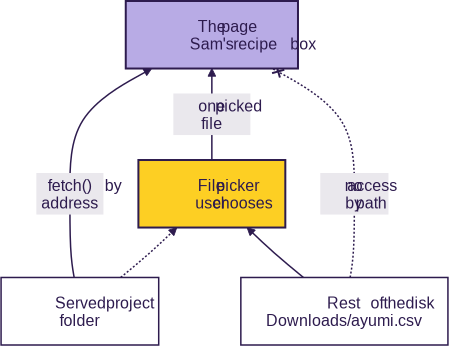
The control that opens the picker is an <input type="file">. In recipes/index.html, add it right after the closing </form> tag of the Add a recipe form, with a label like every other field:
<label>
  Import a recipe list
  <input type="file" id="import-csv">
</label>
Save, and the box shows Import a recipe list with a Choose File button and the words No file chosen beside it. Chrome draws the button and those words itself.
When Sam picks a file, the input fires the same change event you’ve used on radio buttons, checkboxes, and select controls. As with those controls, change means the selection changed. Picking the file that’s already chosen fires no change, and neither does closing the dialog with Cancel, which leaves the selection as it was.
The picked files sit in the input’s files property, a list-like object that you index like an array. Its first item, files[0], is a File object that describes the file: its name, its size in bytes, and a way to read what’s inside.
Open recipes/main.js. Inside setUpRecipeBox(), right before the last render(); call, add a listener that logs the picked file’s name and size:
  const fileInput = document.querySelector("#import-csv");

  fileInput.addEventListener("change", () => {
    const file = fileInput.files[0];
    console.log(file.name, file.size);
  });
To have a file outside the project to pick, copy recipes/data/ayumi.csv into your Downloads folder, as if it had arrived by email. Then reload the box at http://127.0.0.1:3000/recipes/index.html, and open the Console with Ctrl+Shift+J, or Cmd+Option+J on macOS.
Before you pick anything, ask the Console for the first file. Type this line and press Enter:
document.querySelector("#import-csv").files[0]

