
Rosa answers the same two emails every week: “How do I get a plot?” and “What happens at a work day?” The answers belong on the about page. But a page of questions with every answer spelled out requires a lot of scrolling, and a visitor has to read past answers they don’t need to find the one they do.
In this lesson, you’ll turn those two questions into an FAQ where each answer stays folded away until a visitor opens it, with no JavaScript at all. You’ll make the entries open one at a time, style the open one, and check that it all works from the keyboard. Start by getting the site in front of you.
Set Up the Starter Site
In this course, you’ll add the finishing touches to the garden website, check its quality, and publish it. Each section ends with exercises, and a project carries every change across the whole site. Publishing needs a free GitHub account and is optional. Everything before it works in your editor’s live preview.
The starter is the garden’s site as you last left it, with ten pages, seven of them in the nav, the shared header and footer, and one stylesheet in five cascade layers. Skip any step you’ve already done:
- Get a current version of Chrome or Edge.
- Install VS Code, then install Live Preview by Microsoft from its Extensions view, which you open with Ctrl+Shift+X, or Cmd+Shift+X on macOS.
- Download and unzip the course’s sample code ZIP file, and copy its
01-faq-accordion/garden/folder to where you keep your projects. If you already have agarden/folder there, rename yours first. - Copy the six photos from
garden-photos.zip, in the course’s supporting materials, intogarden/images/. - Open
garden/in VS Code using File → Open Folder, then openabout.html. - Open the Command Palette with Ctrl+Shift+P, or Cmd+Shift+P on macOS, and run Live Preview: Show Preview (External Browser). If another browser opens, paste its address into Chrome or Edge.
The screenshots in this lesson show the starter’s about page in Chrome, served by Live Preview, with your FAQ added. You’ll edit this garden/ folder directly, because the FAQ is a lasting part of the site.
Turn a Question Into a Disclosure
A folding answer sounds like a job for a script. As a programmer, you’d probably write a click handler that toggles a class on the answer and hides it with CSS. HTML has an element that does all of that for you. A <details> element is a disclosure widget: a box whose content stays hidden until the visitor opens it. Its first child, a <summary>, is the part that’s always visible and that the visitor clicks.
In about.html, add this section at the end of <main>, after the Contact Rosa paragraph:
<section class="faq">
  <h2>Common Questions</h2>
  <details>
    <summary>How do I get a plot?</summary>
    <p>
      Fill in the
      <a href="apply.html">plot application form</a>.
      Rosa offers each free plot in the order the
      applications arrive.
    </p>
  </details>
</section>
Save, and click How do I get a plot? The answer appears below it, and the triangle in front of the question turns to point down. Click it again, and the answer folds away. The browser handled the click, the triangle, and the state.
To see where it keeps that state, open DevTools with F12, and in the Elements panel, expand <main> and its <section>. Click the question while you watch the <details> tag. The browser adds an attribute, open, when the entry opens and removes it when it closes:
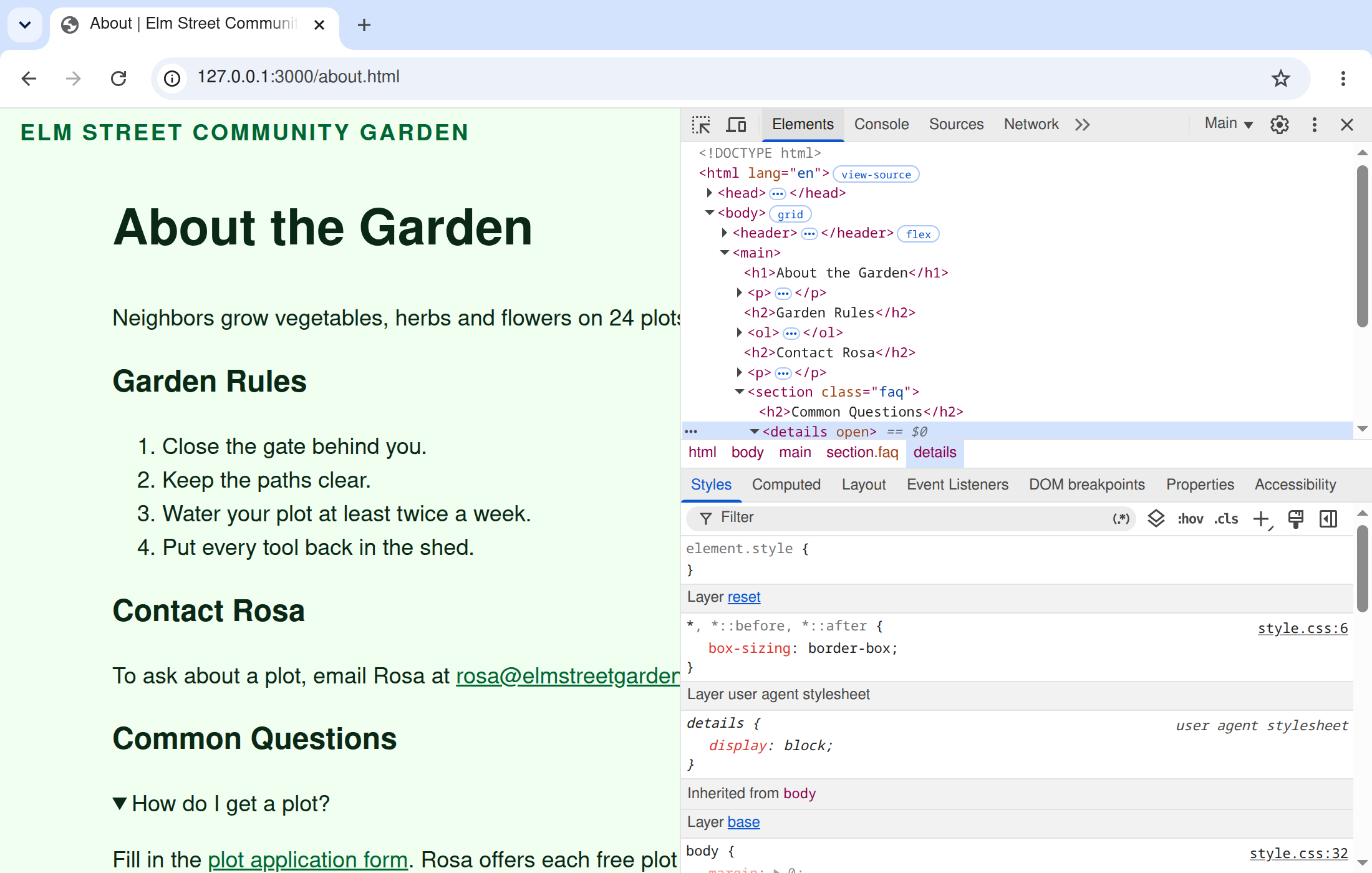
open is a Boolean attribute, like required on a form field. The browser only checks whether it’s there and ignores any value. You can also write <details open> in your HTML to start an entry open. Later in this lesson, you’ll style the open entry through that same attribute.
Open One Answer at a Time
With two answers, an FAQ starts to feel cluttered. If a visitor opens both, the page grows longer. Rosa wants one answer open at a time, like the panels of an accordion, where opening one closes the other.
Add the second entry inside the same <section>, after the first <details>, and give both <details> elements the same name:
<details name="garden-faq">
  <summary>What happens at a work day?</summary>
  <p>
    Volunteers meet at the tool shed on a Saturday,
    from 9 a.m. to noon, to clear beds and turn the
    compost. Bring gloves. The garden lends the tools.
  </p>
</details>
Then change the first entry’s start tag to <details name="garden-faq"> too. Save, open the plot question, then open the work day question. The plot answer closes by itself.
The name works like the name on a group of radio buttons. Every radio button with the same name belongs to one group, and checking one unchecks the rest. The <details> elements with the same name form an exclusive accordion in the same way.
The comparison breaks down when you activate an open entry, though. Once a visitor selects a radio button, selecting it again doesn’t clear it. Activating an open <summary> does close its entry, so a visitor can close every entry of the accordion.
If the difference between a group of <details> and a group of radio buttons still feels fuzzy, the button below opens a chat with the AI mentor, starting from this question:
Before you rely on the shared name, know that exclusive accordions are newly available in Baseline. Baseline is the web’s label for features that work in the current versions of all the major browsers: Chrome, Edge, Firefox, and Safari.
Newly available means that has only recently become true, so visitors with older browsers may still miss out. Widely available means it’s been true for about two and a half years.
The <details> element is widely available, but its name attribute is only newly available. To check it yourself, open MDN’s <details> page, scroll to Browser compatibility, and read the row for name.
A browser without support ignores the name. Each entry then opens and closes on its own. The FAQ still works, and the only difference is that both answers can show at once.
You can see this for yourself. Delete name="garden-faq" from both start tags, save, and open both questions. Both answers stay open and readable, as they would in a browser that doesn’t know the attribute. Then put the shared name back on both entries and save.
Style and Test the Open Entry
Folded answers can make the FAQ hard to scan. The open entry has the same background as the closed one, and the page doesn’t show where one entry ends and the next begins.
The open attribute lets you style the two states differently. An attribute selector, [open], matches a <details> only while it’s open, so the browser applies its rules when the entry opens and drops them when it closes.
In style.css, add these rules at the start of the components layer, inside @layer components {:
.faq details {
  border: 2px solid var(--green);
  border-radius: 8px;
  padding: var(--space-s) var(--space-m);
  margin-block-end: var(--space-s);
}

.faq details[open] {
  background-color: var(--stripe);
}

.faq summary {
  font-weight: bold;
}
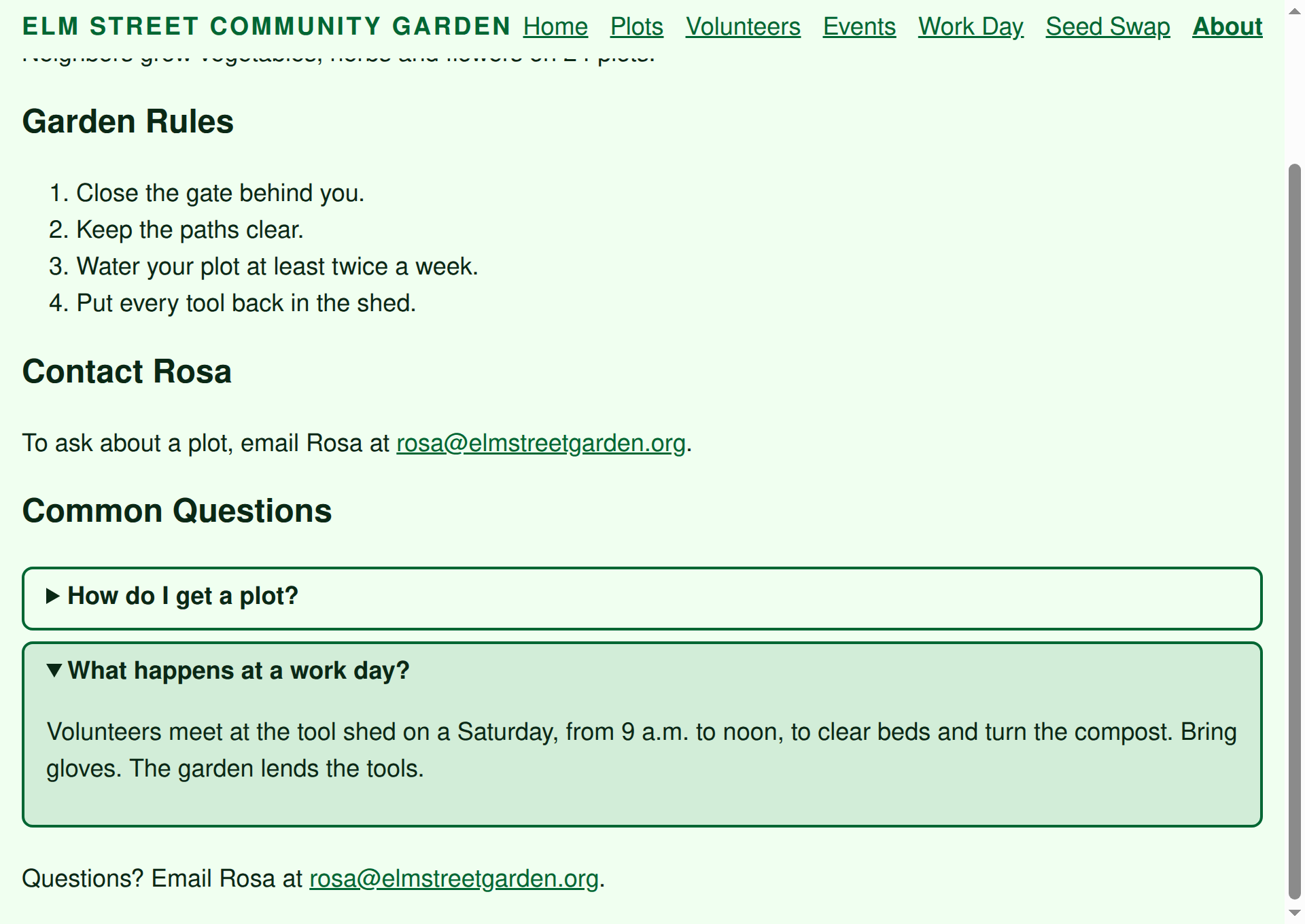
The first rule gives each entry a green border and some room inside. The second gives the open entry the pale green of the plots table’s stripes, so it stands out from the closed one. Save, and open the work day question:
A visitor who uses the keyboard needs the FAQ as much as anyone, so test it without the mouse. Click the page’s heading, then press Tab until the focus outline reaches How do I get a plot? Each <summary> is a stop on the way, like a link, without any extra attribute.
Press Enter to open the entry, and Space to close it again. Press Enter again to reopen the plot entry. Then press Tab past the link to the application form until the focus reaches the work day question, and open it with Enter. The plot answer closes, as it did with the mouse.
Screen readers also announce each question as collapsed or expanded. The browser gives you all of this because you used the elements made for the job. A homemade disclosure built from a <div> and a click handler would need every bit of it written by hand, which is the work the RealJS course Forms and Controls for Everyone takes on for controls that HTML doesn’t provide.
To test yourself before you move on, use this button to ask the mentor for a short quiz:
Check Your Understanding
Before you open the answers, try these two questions:
- Kofi adds a third entry to Rosa’s FAQ,
<details name="garden-faqs">. He opens it, then opens the plot question. What happens to his entry, and why? - Which selector matches only the
<summary>of the open entry?
- Kofi’s entry stays open. Its
nameisgarden-faqs, with an extras, so it belongs to a group of its own. The browser doesn’t warn about the mismatch. Opening one entry after another lets you check the grouping. - The selector is
.faq details[open] summary. The[open]part matches only while the browser has added the attribute, and the space beforesummaryselects the question inside that entry.
Your about page now has an FAQ that folds and unfolds without JavaScript and works from the keyboard. The garden’s opening hours need something different, a small panel that opens from a button in the header and floats over the page. In the next lesson, Show Opening Hours in a Popover, you’ll build it.
