dayjs is installed and committed on your vite branch, and main still holds the site that works today. Now it’s the badge’s turn. The README’s first to-do asks for an “Open now” badge on the home page, and its code is ready for you to paste in. It uses dayjs for the date math, which is why you installed it.
In this lesson, you’ll add the badge’s code and watch the home page stop filling in, which sounds worse than it is. You’ll read the error in the browser’s Console, find out why a browser can’t load a package by its name, and bring the page back with Vite’s dev server. Start by putting the badge into the project.
Add the Badge and Watch the Page Break
The badge needs code in five files, because it has a place on the page, a look, and two functions behind it. Make sure that git status says On branch vite, then work through the files in VS Code, starting with the function that finds the store’s next opening. Add this line at the very top of src/lib/hours.js, above the two imports that are already there:
import dayjs from "dayjs";
Then add the nextOpening() function at the end of the same file:
// The next moment the store opens after `date`, as a Date, holiday hours
// included. Looks up to a week ahead, so a closed holiday is skipped.
export function nextOpening(date) {
  for (let offset = 0; offset < 8; offset += 1) {
    const day = dayjs(date).add(offset, "day");
    const hours = hoursFor(day.toDate());
    if (!hours.closed) {
      const [hour, minute] = hours.open.split(":").map(Number);
      const opening = day.hour(hour).minute(minute).second(0).millisecond(0);
      if (opening.isAfter(date)) {
        return opening.toDate();
      }
    }
  }
  return null;
}
nextOpening() starts on the given day and steps forward one day at a time with dayjs’s .add(). For each day, it asks the existing hoursFor() for the hours, holidays included, and returns the first opening time that’s still ahead. On the evening of Christmas Eve, it skips the closed Christmas Day and lands on Saturday morning, the case you read about two lessons ago.
The code for the badge’s text has a file of its own. Create src/lib/badge.js with this code:
src/lib/badge.js
import dayjs from "dayjs";
import { formatTime, hoursFor, isOpen, nextOpening } from "./hours.js";

// The home page's badge: "Open now, until 9 p.m." while the store is open,
// else when it opens next, holiday hours included.
export function badgeText(date) {
  if (isOpen(date)) {
    return `Open now, until ${formatTime(hoursFor(date).close)}`;
  }
  const now = dayjs(date);
  const opening = dayjs(nextOpening(date));
  let day = opening.format("dddd");
  if (opening.isSame(now, "day")) {
    day = "today";
  } else if (opening.isSame(now.add(1, "day"), "day")) {
    day = "tomorrow";
  }
  return `Closed now. Opens ${day} at ${formatTime(opening.format("HH:mm"))}`;
}
badgeText() says when the store closes if it’s open, or when it opens next if it’s closed. It uses the date you pass in and your computer’s time zone, so it assumes that you’re in the store’s time zone. A badge for visitors in other time zones would need to use the store’s time zone instead. The two .isSame() calls compare calendar days, so the badge can say “today” or “tomorrow” instead of a weekday name.
The page needs a spot for the badge. In index.html, add this paragraph right above the one with id="today-hours":
<p id="open-badge" class="open-badge">Open now?</p>
The text Open now? is a placeholder that the page’s JavaScript replaces. In src/home.js, replace the first lines, down to and including const today = new Date();, with these:
import { weeklyHours } from "./data/hours.js";
import { holidays } from "./data/holidays.js";
import { formatHours, hoursFor, isOpen } from "./lib/hours.js";
import { badgeText } from "./lib/badge.js";

const today = new Date();

// The "Open now" badge, holiday hours included.
const badge = document.querySelector("#open-badge");
badge.textContent = badgeText(today);
badge.classList.toggle("closed", !isOpen(today));
The new code fills in the badge once, when the page loads, so only a reload brings it up to date. It also adds the class closed while the store is closed. Finally, add the badge’s two rules at the end of css/styles.css. These rules give the badge a green pill shape that turns gray with that class:
.open-badge {
  display: inline-block;
  padding: 0.2rem 0.6rem;
  border-radius: 999px;
  background: var(--green);
  color: white;
  font-weight: bold;
}

.open-badge.closed {
  background: #6b6b6b;
}
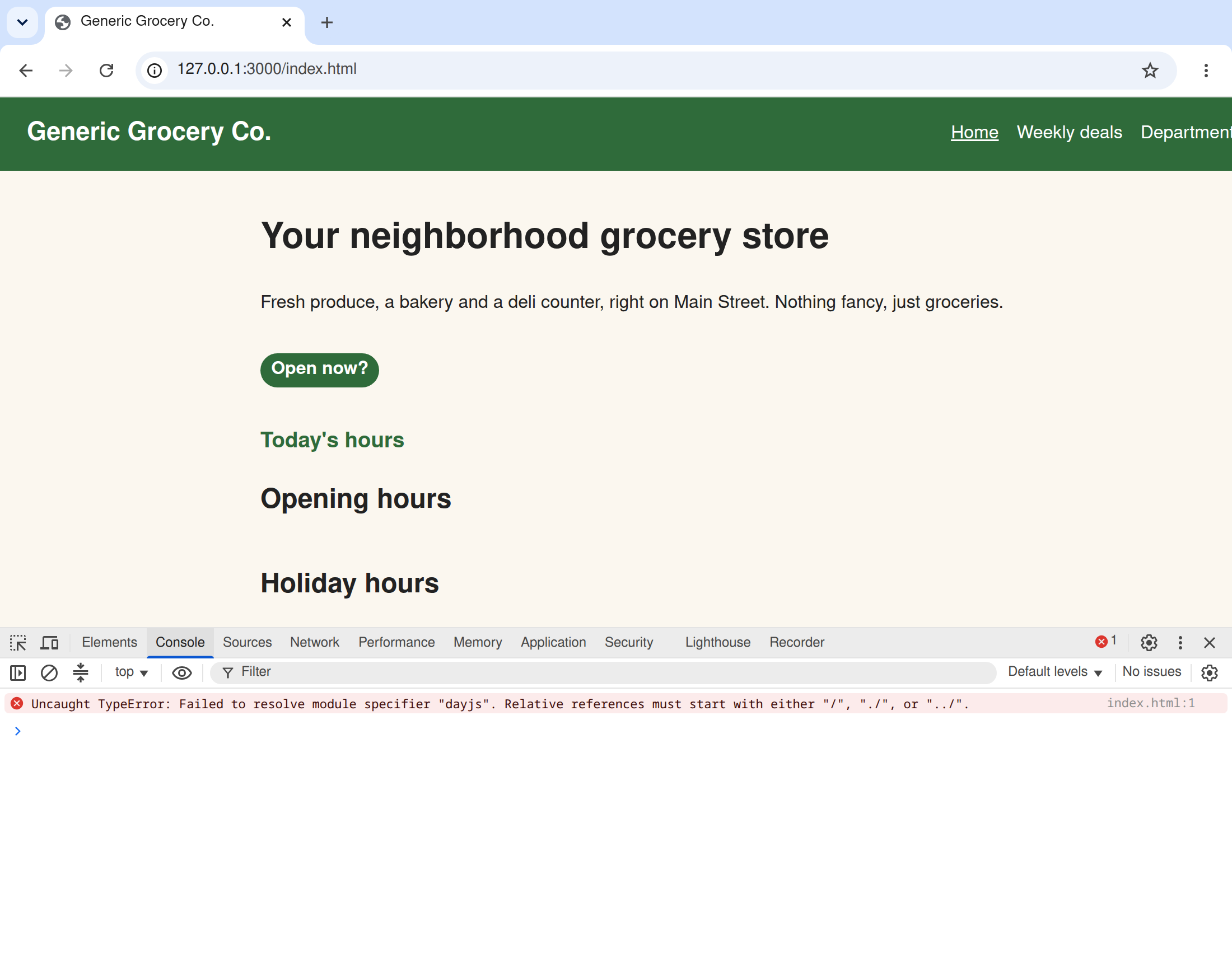
Save all five files, then look at the result. Right-click index.html and choose Open in Integrated Browser, or reload the tab if it’s still open. The badge shows Open now?, and the line below it says Today’s hours. The weekly and holiday hours are gone, too. The page’s JavaScript didn’t run at all.
When a page’s JavaScript fails, the browser writes the reason in its Console. VS Code’s integrated browser has the same developer tools as Chrome. Toggle them with the developer tools button in the integrated browser’s toolbar, and pick the Console tab. In the integrated browser, the page and its Console look like this: