
The badge works on Vite’s dev server, and your vite branch has two new commits. There’s a catch you may have spotted in the last lesson, though. The dev server only runs on your computer, and only while npm run dev does. Unless you plan to leave your laptop running next to the cash register for the rest of its life, the store’s visitors need files that a plain web server can hand out.
In this lesson, you’ll make those files with npm run build, check that they work before anyone else sees them, and commit what the build needs. Along the way, you’ll encounter a few surprises from the build, and your own branch is a good place to work through them.
Find the Folder to Publish
When you published a site before, you uploaded its folder to GitHub Pages, as in the Polishing and Publishing a Website course. So you may wonder whether you can upload the project folder as it is. Take a look at the first line of src/lib/badge.js on disk:
import dayjs from "dayjs";
The file still says "dayjs", because Vite’s rewrite only happens on the way to the browser. A static host sends the file as it is, so the browser stops at that line, as the integrated browser did in the last lesson. Here’s the message, wrapped for display:
Uncaught TypeError: Failed to resolve module specifier "dayjs". Relative
references must start with either "/", "./", or "../".
The project folder only works with the dev server in front of it. That’s fine while you work, because you’re the only visitor, but a web host doesn’t run Vite for you.
This is the job of the build. npm run build runs vite build, which does the rewriting once, ahead of time, and writes the result to a new folder called dist/, short for distribution.
On the way, Vite works as a bundler. It follows the imports from each page and combines your modules and dayjs into a few files. The dist/ folder needs neither node_modules/ nor Vite, so it’s the folder you publish. The third script, npm run preview, serves dist/ so that you can check it first.
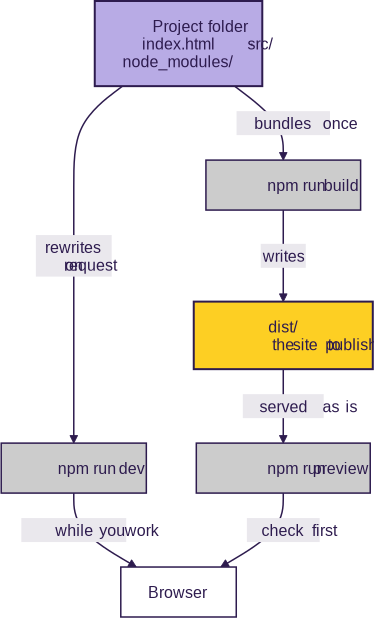
So your project’s files now take two paths. While you work, the dev server reads the project folder and rewrites each file as the browser asks for it. When you’re ready to publish, the build writes dist/, and that folder is the site. Here are the two paths side by side:
Build the Site and Look in dist/
The build is one command, and its output lists every file it wrote. Leave the dev server running if it still is, and run the build in your second terminal:
$ npm run build
npm notice run [email protected] build
npm notice run vite build
vite v8.3.8 building client environment for production...
transforming...
✓ 10 modules transformed.
rendering chunks...
computing gzip size...
dist/index.html                  1.83 kB │ gzip: 0.78 kB
dist/assets/index-BRjo-xPi.css   1.28 kB │ gzip: 0.59 kB
dist/assets/index-ytDDRbB2.js   11.10 kB │ gzip: 4.63 kB

✓ built in 98ms
Vite wrote a page, a CSS file, and a JavaScript file. The characters after index- are a hash of each file’s content, so a file gets a new name whenever its content changes. A browser that loads the updated page then asks for the new file instead of reusing a copy it saved earlier. Your hashes may differ.
Open the new dist/ folder in VS Code’s Explorer. It has index.html and an assets/ folder, and that’s all. The deals page, the departments page, and the pickup page are missing, even though they worked under npm run dev a minute ago.
If you expected the build to copy every page, don’t worry, because that’s a very common first guess. Vite’s build doesn’t copy your folder.

