
Your game record from the first lesson knows its title, its maximum number of players, and its playing time. So far, you’ve read those fields with dot notation, as in game.minutes, because you knew while writing the code which field you wanted.
On a real game night, the question often changes from moment to moment. One friend asks how long the game takes, and another asks how many people can join. Someone may want to note who owns the box, or your group may find that the game always takes longer than the rule book says. A record that can only be read with names you typed in advance can’t keep up with that.
In this lesson, you’ll make your record respond to those questions. You’ll read a field whose name sits in a variable, add and update fields, use field values in calculations and comparisons, and read one field that sits inside a smaller record. Keep scratch/game.js open, because you’ll grow it step by step.
Read a Field Whose Name Is in a Variable
In the first lesson, you briefly met a second way to read a field, with the field name as a string in square brackets. So game["minutes"] reads the same field as game.minutes. That form looked like extra typing back then, but it has one ability that dot notation lacks.
The text between the brackets doesn’t have to be a quoted string you typed. It can be any expression that produces a string, including a variable. JavaScript works out the string first and then looks up the field with that name. This is called bracket notation.
Replace the contents of scratch/game.js with this version, where the variable wanted holds the name of the field your friend asked about:
scratch/game.js
const game = {
  title: "Ticket to Ride",
  maxPlayers: 5,
  minutes: 60,
};
const wanted = "minutes";
console.log(game[wanted]);
Before you run it, follow the last line step by step. What string does wanted hold, and which field of game has that name? Then run the script:
$ node scratch/game.js
60
JavaScript replaced wanted with its value, "minutes", and then read game["minutes"]. The bracket line itself never mentions minutes, so the same line can read a different field. Change wanted to "maxPlayers", predict the output, and run the script again.
This is what “choosing a field at run time” means. The value the variable holds while the program runs determines the field name, instead of the name being fixed in the code you wrote.
Two details make the difference between the forms clear. In game["minutes"], the quotes make minutes a string, so JavaScript uses that exact text as the field name. In game[wanted], there are no quotes, so wanted is a variable and JavaScript uses the string stored in it.
Dot notation never looks inside a variable. Whatever follows the dot is taken literally as the field name. That’s why you use dot notation for names you know while writing, and brackets when the name comes from a variable.
Bracket notation still follows the rules you learned for missing fields. If the variable holds a name the record doesn’t have, then you get undefined. Try it with "price":
scratch/game.js
const game = {
  title: "Ticket to Ride",
  maxPlayers: 5,
  minutes: 60,
};
const wanted = "price";
console.log(wanted);
console.log(game[wanted]);
$ node scratch/game.js
price
undefined
The first line confirms that wanted holds "price". The record has no price field, so the lookup gives undefined, just like a read with a misspelled field name in dot notation. When a bracket read surprises you, log the variable itself and compare its string with the record’s field names, letter by letter.
Add and Update Fields
Records don’t have to stay the way you first wrote them. You can change a field’s value by assigning to it, the same way you assign a new value to a let variable. If no field has that name yet, the assignment adds a new field to the record.
Say your group always needs longer than the box claims, so you want to store 75 minutes instead of 60. You’d also like to note who owns the game. Add two assignment lines and log the record:
scratch/game.js
const game = {
  title: "Ticket to Ride",
  maxPlayers: 5,
  minutes: 60,
};
game.minutes = 75;
game.owner = "Sam";
console.log(game);
Predict what the record looks like now. Which line changes an existing field, and which one creates a new field? Then run it:
$ node scratch/game.js
{ title: 'Ticket to Ride', maxPlayers: 5, minutes: 75, owner: 'Sam' }
The minutes field now holds 75, and the record has gained an owner field at the end. Feel free to put your own name in that field.
You might wonder how this works with const. The const keyword stops you from assigning a different value to the variable game itself, so a line such as game = "Catan"; would fail. Changing a field inside the record doesn’t replace what game holds. The variable still holds the same record, and only that record’s contents change.
Bracket notation works for assignments too, which lets your program decide which field to set at run time. Here, field names the field to set, and score holds the value:
scratch/game.js
const game = {
  title: "Ticket to Ride",
  maxPlayers: 5,
  minutes: 60,
};
const field = "rating";
const score = 8;
game[field] = score;
console.log(game.rating);
Before you run it, work out what game[field] = score; does. Which field name will it use, what value will that field hold, and what will game.rating print? Then run the script:
$ node scratch/game.js
8
The record had no rating field, so the assignment created one, named by the string in field. Change field to "minutes" and score to 90, then log game.minutes instead. Predict whether this adds a field or updates one before you run it.
Use Field Values in Calculations and Comparisons
A field read gives you an ordinary value, so it works anywhere you’d use a number or a string. That’s how a record starts to answer questions about your game night.
Say four friends are coming over and you have 90 minutes. You can compare each number with a field of the record, and you can calculate how long two rounds would take:
scratch/game.js
const game = {
  title: "Ticket to Ride",
  maxPlayers: 5,
  minutes: 60,
};
const friends = 4;
const timeBudget = 90;
console.log(friends <= game.maxPlayers);
console.log(game.minutes <= timeBudget);
console.log(game.minutes * 2);
Predict the three lines first. Does everyone fit, does one round fit in your evening, and how long would two rounds take in total? Then run it:
$ node scratch/game.js
true
true
120
The game fits your group and your evening, and two rounds would take 120 minutes, which is more than your budget. Now change friends to 6 and timeBudget to 45, predict again, and rerun. Each comparison reads the current field value, so the answers change as soon as your evening does.
These are the same comparisons you’ve used with plain variables. The only new part is that one side of each comparison is now a field read, such as game.maxPlayers.
Reach Into a Record Inside a Record
Sometimes one field describes something with several parts of its own. Say you’re carrying games to a friend’s place and want to know how heavy each box is. You could store the box’s details as a small record of their own and put that record in a box field:
scratch/game.js
const game = {
  title: "Ticket to Ride",
  maxPlayers: 5,
  minutes: 60,
  box: { weight: 2, size: "large" },
};
console.log(game.box);
console.log(game.box.weight);
The value of box is a record with two fields, weight in kilograms and size. Before you run the script, decide what each line prints. Will the first line show a single value or a whole record?
$ node scratch/game.js
{ weight: 2, size: 'large' }
2
The first line shows the whole inner record, because that’s the value stored in box. The second line goes one step further. You read game.box.weight from left to right, where each dot reads a field from the record to its left:
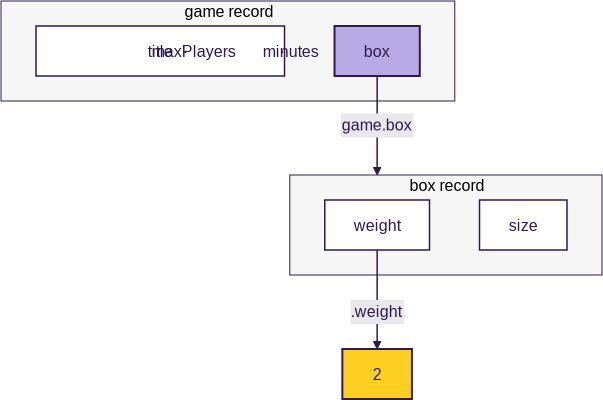
The first step, game.box, gives you the box record, and the second step, .weight, reads the weight from that box record. So the path works only when every field sits at the level where you ask for it. Replace your script with this complete version, which ends with two new reads. Predict what each read prints, then run it:
scratch/game.js
const game = {
  title: "Ticket to Ride",
  maxPlayers: 5,
  minutes: 60,
  box: { weight: 2, size: "large" },
};
console.log(game.weight);
console.log(game.box.size);
$ node scratch/game.js
undefined
large
The outer record has no weight field of its own, so game.weight gives undefined. The weight lives one level down, inside box. The path game.box.size reads box and then size instead of weight and finds "large".
A missing field at the end of a path still gives undefined, so game.box.price would print undefined. A missing field in the middle is different. In game.box.weight, a missing box field means game.box gives undefined, and the next step tries to read weight from undefined. That isn’t a record, so JavaScript stops with an error instead.
The message reads TypeError: Cannot read properties of undefined (reading 'weight'). Read it as information: the step before .weight gave undefined, so check that the box field exists and holds the inner record.
One level of nesting like this is all you’ll need in this course. The records you’ll work with later, including those in your final project, stay flat, with plain values in every field.
Check Your Understanding
Here’s a record for a movie night. Read it, then work through the questions below without running anything:
const movie = {
  title: "Paddington",
  minutes: 95,
  snacks: { popcorn: 2, juice: 4 },
};
const asked = "title";
Decide what movie[asked], movie.asked, and movie.snacks.juice give you, and why. Then write two lines that set minutes to 103 and add a seen field holding false. Finally, write a comparison that checks whether the movie fits into a 120-minute evening.
To check yourself, paste the record and the asked declaration into a scratch file. Wrap each of the three reads in console.log(), add your two assignment lines, and then log the whole movie record and your comparison. Assignments print nothing on their own, so logging the record is how you see whether they worked.
movie[asked] gives Paddington, because the brackets use the string stored in asked. movie.asked gives undefined, because the dot looks for a field literally named asked. movie.snacks.juice gives 4.
The logged record should show minutes: 103 and a new seen: false field at the end. Your comparison should give true. It would also give true with the old 95 minutes, so check the record itself to confirm your update.
Practice On-Site
In the next exercise, Update a Plant Care Record, you’ll write functions that read a field named by an argument and add or update fields of a plant’s record. The tests choose the field names, and you can’t know them in advance, so your functions have to work with whichever name arrives in the argument. If a test reports undefined, check which notation you used and whether the field name sits where you expected.
