
Alright, you’ve got the Generic Grocery Co. site as a ZIP, with a to-do list waiting in its README. Before you change anything, take a look at what the previous developer left behind. One folder holds three versions of the same file, which is… generous? However, none of them says which one counts.
In this lesson, you’ll find out why those handmade copies can’t answer your questions and what a version control system records instead. You’ll also be able to tell Git apart from GitHub. Git is the tool you’ll use in this course, while you may already have used GitHub to publish pages.
Start by checking which file is the relevant one, as any new developer would in a folder like this.
Find the Live Deals File
Before you can update this week’s deals, you need to know which file the site reads them from. If you haven’t downloaded the project yet, it’s the starter ZIP from the course intro. You can also get it right here:
Unzip it if you haven’t already. You’ll get a folder called generic-grocery/. Open it in your editor and look inside src/data/:
data/
├── deals-FINAL2.js
├── deals-old.js
├── deals.js
├── holidays.js
└── hours.js
Three of those files hold deals. The one called deals.js starts with the week its prices are good for, followed by the list of deals, with every price in cents:
src/data/deals.js
// This week's deals. Prices are in cents, and `unit` is "each", "lb" or "dozen".
// A deal week runs from Wednesday to Tuesday, like the printed weekly ad.
export const dealWeek = { start: "2026-11-18", end: "2026-11-24" };

export const deals = [
  { item: "Large brown eggs", unit: "dozen", regular: 499, sale: 399 },
  { item: "Bananas", unit: "lb", regular: 69, sale: 49 },
  { item: "Ground beef, 85% lean", unit: "lb", regular: 699, sale: 549 },
  { item: "Sourdough loaf", unit: "each", regular: 599, sale: 449 },
  { item: "Fresh apple cider, 1 gallon", unit: "each", regular: 799, sale: 599 },
  { item: "Sweet potatoes", unit: "lb", regular: 149, sale: 119 },
  { item: "Canned pumpkin, 15 oz", unit: "each", regular: 249, sale: 199 },
  { item: "Fresh cranberries, 12 oz bag", unit: "each", regular: 349, sale: 279 },
];
Now open deals-old.js and deals-FINAL2.js next to it, and play detective for a minute. Try to answer three questions from the files alone. Which of the three files does the deals page use? What changed between them? And which one should you edit for the first to-do, the new deals from Wednesday, November 25? Make up your mind before you open the answer.
The live one is deals.js, but none of the deals files says so. You find out from the code that uses it. The first line of src/deals-page.js imports dealWeek and deals from ./data/deals.js, and no file in the project imports the other two.
Figuring out what changed between the files is hard, though. deals-old.js has a dealWeek from November 11 to 17 and a different list, so it probably contains last week’s deals. deals-FINAL2.js has this week’s dates and a comment that says use this one for thanksgiving?? (not live yet). Its sweet potatoes are 99¢ instead of $1.19, its canned pumpkin is $1.79 instead of $1.99, and stuffing mix replaces the cranberries.
Those two new prices match the first to-do in the README. So was deals-FINAL2.js a head start on next week, or an idea that was dropped? The previous developer’s notes.txt only says “edit src/data/deals.js (NOT the old ones, i kept those just in case)”. The files don’t say who made each copy, when, or why.
If you didn’t find a clear answer to every question, that’s the point of this activity. The import line told you which file is live, because the site’s code depends on it. But for what changed and why, you had to compare files line by line and then guess.
Saving copies like deals-old.js and deals-FINAL2.js is a habit almost everyone starts with, and it works for a while. It stops working as soon as there’s a second copy you didn’t make yourself, or a question about a change from three weeks ago.
Record History Instead of Copies
Copies keep old files around, but they don’t keep the story of how a project got from one state to the next. A version control system keeps that story for you. Instead of a folder full of -old and -FINAL2 files, you keep one deals.js, and the system remembers each earlier state you chose to record.
Each saved state is a snapshot of the project’s files, and Git calls one of these snapshots a commit. A commit records the files Git tracks, with only the changes you selected for that commit. A new file Git doesn’t track yet, or an edit you didn’t select, stays out of it. You’ll learn how to choose what goes into a commit in a later lesson. Each commit also carries three facts that a copied file never has:
- Who made the change, by name and email
- When the change was recorded, as a date and time that can be hours after the edit itself
- Why they made it, in a short message they write themselves, such as “Put eggs back to regular price from November 25”
You can think of the history as a photo album of your project, where every photo has a caption, a date, and the photographer’s name. The comparison stops working in a useful way, though, because Git can do more than show you an old photo. It can put the tracked files back to how a commit recorded them, and it can show you exactly which lines differ between two snapshots in what’s called a diff:
-   { item: "Large brown eggs", unit: "dozen", regular: 599, sale: 399 },
+   { item: "Large brown eggs", unit: "dozen", regular: 499, sale: 399 },
That history solves problems that handmade copies simply can’t tackle. If an edit breaks something, you can go back to the last commit that worked. If you wonder which commit last changed the egg price, who made it, and when, you can ask the history instead of comparing files.
And when several people work on the same site, or you work on two things at once, the system can combine the changes. In this course, you’ll practice checking when a price changed, throwing away an edit you haven’t committed yet, and fixing your last commit. Going back to older commits and combining work from several people come later in the path.
Keep in mind that Git doesn’t save anything on its own, and it doesn’t copy your work anywhere else. It records a snapshot only when you tell it to by making a commit, and the snapshot stays on your computer. Unlike a cloud sync folder, Git won’t pick up your edits as you make them.
You still don’t know whether deals-FINAL2.js was a head start on next week or an idea that was dropped. The button below opens a chat with the mentor, where you can talk through how a commit history would have settled that question and what you’d look for in it:
Tell Git and GitHub Apart
If you’ve published a site on GitHub Pages by uploading files, then you’ve already used GitHub. It’s natural to assume that Git and GitHub are the same thing. They’re closely related, but they do different jobs, and knowing which is which explains why this course doesn’t need a GitHub account.
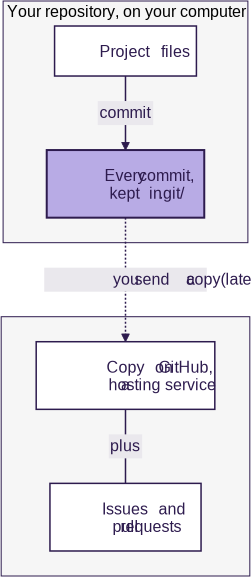
Git is a program that runs on your own computer. When you put a project under version control with Git, the project folder becomes a repository, which is the folder plus its complete history. Git keeps that history in a hidden folder called .git/ inside the project. You don’t need an account, a website, or an internet connection to commit, look at the history, or go back to an earlier snapshot. All of it happens on your machine.
GitHub is a hosting service, a website that can store another copy of a repository so that other people, or your other computers, can get it. On top of that copy, GitHub adds tools for working together, such as issues for tracking work and pull requests for reviewing changes. GitLab and Bitbucket are other hosting services that do the same job.
You’ll put the store’s repository on GitHub in a later course in this path. That’s all you need to know about hosting services for now. The history lives in the repository on your computer, and a hosting service holds a copy of it only when you send one there. This whole course works with Git on your own machine, and you won’t need a GitHub account for any of it. Here’s where each part lives:
Before you move on, try putting this difference into your own words. The button below opens the mentor with a prompt to explain where the store’s history lives. Write your explanation, and the mentor will tell you what’s right and what’s missing:
Check Your Understanding
Try to answer these questions in your own words:
- What can’t
deals-old.jsanddeals-FINAL2.jstell you about the store’s deals? What would Git record fordeals.jsinstead, and when would it record it? - What are three problems that a version control system solves for a project like the store’s site?
- Once the store’s project is a Git repository on your laptop, where does its history live? How is that different from a copy of the repository on GitHub, and do you need a GitHub account to commit?
-
The copies don’t say which one is live, who made each one, when, or why, and you have to compare them line by line to see what changed. A commit records a snapshot of the files Git tracks, with the changes selected for it, plus the author’s name and email, the date and time of the commit, and a message saying why. Git records it only when you make a commit, so an edit you never commit isn’t in the history.
-
Any three of these work: going back to a state that worked, seeing who changed what and why, finding out when something changed, working on several things at once, and combining work from several people.
-
The history lives in the repository on your laptop, in the project’s
.git/folder, and Git works there without an account or an internet connection. A copy on GitHub exists only if you send one there to share the project, and GitHub adds tools for working together, such as issues and pull requests. You don’t need a GitHub account to commit.
You can now say why three deals files couldn’t tell you which one is live or what changed, and what Git would record in their place. To make your first commit, you need the site running and Git installed on your computer. That’s what you’ll do in the next lesson.
