
The setup commit is waiting on your laptop, and the week’s three issues are on GitHub. Before any of this week’s work can go live, GitHub needs that commit, so this lesson starts with an ordinary push.
This time, GitHub refuses it. You’ll read the refusal, find the file that caused it, and give your token the one permission it’s missing. By the end, the setup commit will be on GitHub, and you’ll know what that file does.
Push the Setup Commit
Your laptop has one commit that GitHub doesn’t have yet. This is the course’s prepared setup commit, so it goes straight to main to give the week a starting point. From the next lesson on, every change to the site and its deploy is meant to go through a pull request, as in the last course, and later in this course that rule will be enforced on main. If you kept your repository from the last course, then run git push:
$ git push
...
To https://github.com/generic-grocery-dev/generic-grocery.git
 ! [remote rejected] main -> main (refusing to allow a
   Personal Access Token to create or update workflow
   `.github/workflows/check.yml` without `workflow` scope)
error: failed to push some refs to 'https://github.com/generic-grocery-dev/generic-grocery.git'
If you started from the ZIP, then your repository on GitHub is still empty, so run git push -u origin main instead.
If Git asks for your Username and then your Password, then paste the token at Password. The terminal doesn’t show anything while you paste, and that’s normal. If your credential helper already saved the token from the last course, then Git doesn’t ask and sends it on its own. Your push ends with the same two lines, ! [remote rejected] and error: failed to push some refs.
Okay, it looks like GitHub refused your push. That’s expected here, and the message tells you what’s going on. Take a closer look at it:
-
remote rejectedmeans that GitHub received your push and turned it down. GitHub accepted your token and didn’t change anything in your repository. -
.github/workflows/check.ymlis the file that GitHub objects to. It’s the new file from the setup commit, so the other two files aren’t the problem. -
without workflow scopenames what your token lacks. “Scope” is the word for older, classic tokens. Your fine-grained token calls the same thing the Workflows permission.
Your token has Contents set to “Read and write”, which was enough for every push of the site’s code, but GitHub wants a separate permission for a workflow file.
See Why a Workflow Needs Its Own Permission
To see why GitHub treats this file differently, you first need to know what it is. A workflow is a file in .github/workflows/ that GitHub Actions runs on GitHub’s own computers when something happens in your repository. The top of check.yml says what it’s for and when it runs:
# The check every pull request into main runs: the same lint, formatting and build as
# npm run lint, npx prettier --check . and npm run build on your computer. Protecting main
# can require it to pass before a pull request merges. It never runs on a push to main.
name: Check

on:
  pull_request:
    branches: [main]
The on: part means that GitHub starts this check when a pull request into main is opened or reopened, and again each time you push new commits to its branch. GitHub then installs the project’s packages, lints, checks the formatting, and builds the site, the same way you do before you open a pull request.
Note the comment’s last sentence, too. The check never runs when you push straight to main, and later in this course you’ll see why that matters. You’ll read the rest of check.yml in the next lesson.
So a workflow is code that GitHub runs for you, with access to your repository. Anyone who can edit a workflow file controls what runs there, which is more than changing a price on the deals page. That’s why GitHub asks for a permission of its own, so a token made only for pushing code can’t change what runs on GitHub’s computers.
Your token gets only what the work needs. Until now, the work was the site’s code. Now it includes a workflow, so the token gets that one extra permission and no more.
Contents write access lets your token change every other file in the repository, so it can feel odd that it doesn’t cover check.yml. If you’d like to see it from another angle, then ask the mentor. It explains how GitHub separates a workflow file from the rest of your code, and you can ask follow-up questions:
With that difference clear, you’re ready to give your token the one permission this push needs.
Add the Workflows Permission
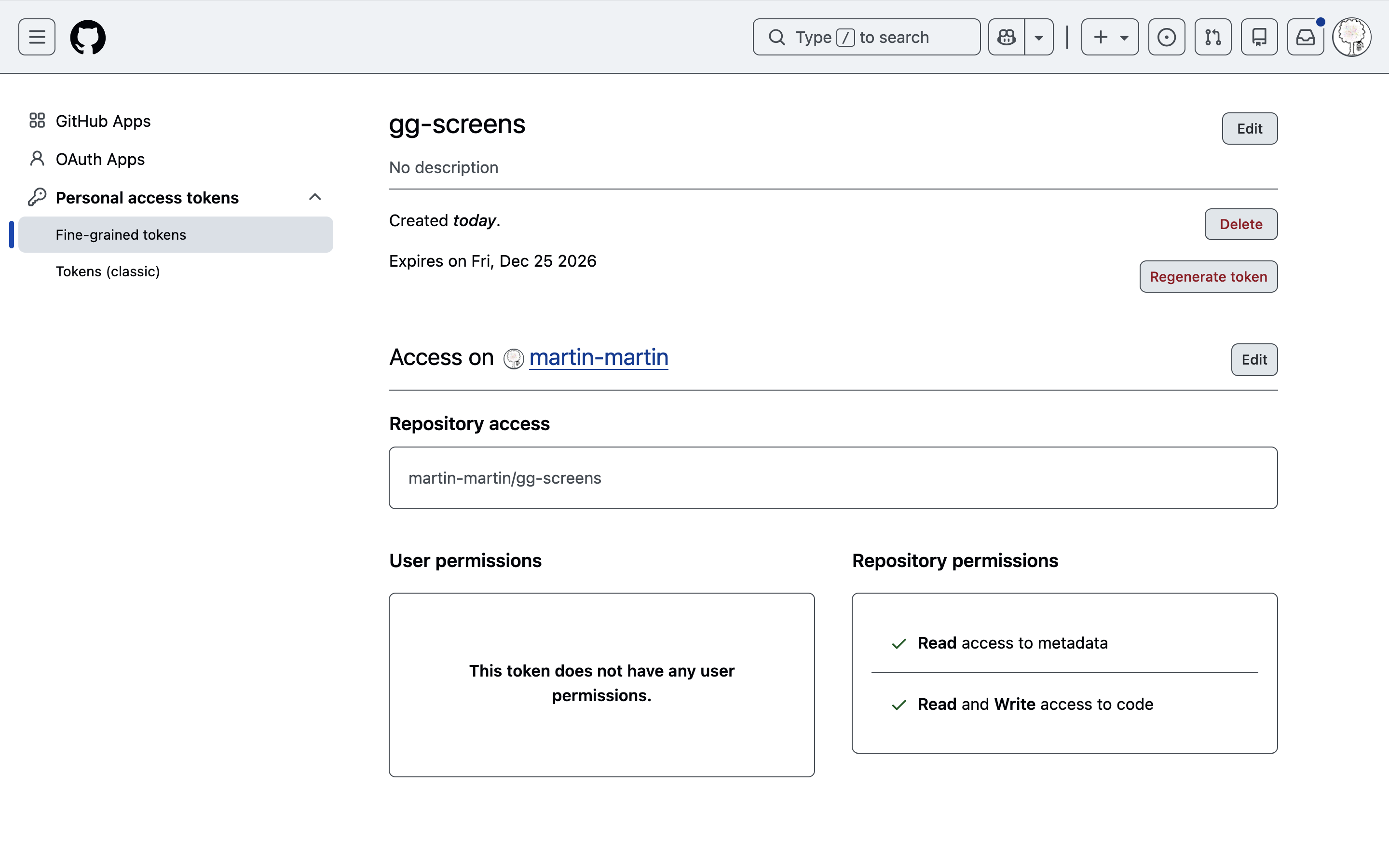
You don’t need a new token, because GitHub lets you add a permission to the one you have. On GitHub, open Settings → Developer settings → Personal access tokens → Fine-grained tokens. The list of tokens offers only Delete next to each one, so open the token by its name instead. Click your token’s name, such as generic-grocery push. Its page lists the token’s repository and permissions, with an Edit button:
From there, add the permission:
-
Click Edit.
-
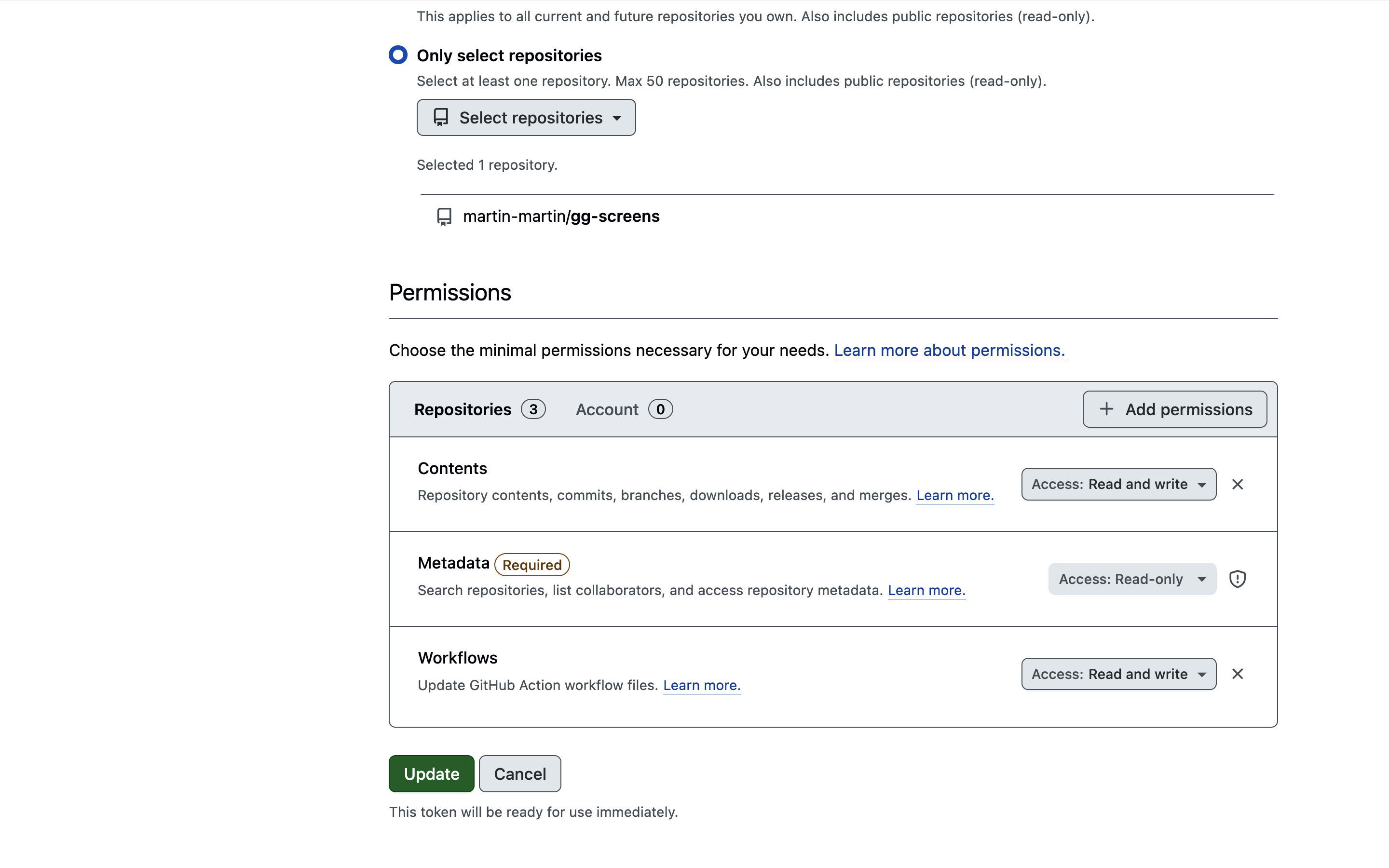
Click Add permissions, pick Workflows, and set it to “Read and write”.
Contents keeps its “Read and write” setting, so the token’s permissions now look like this:
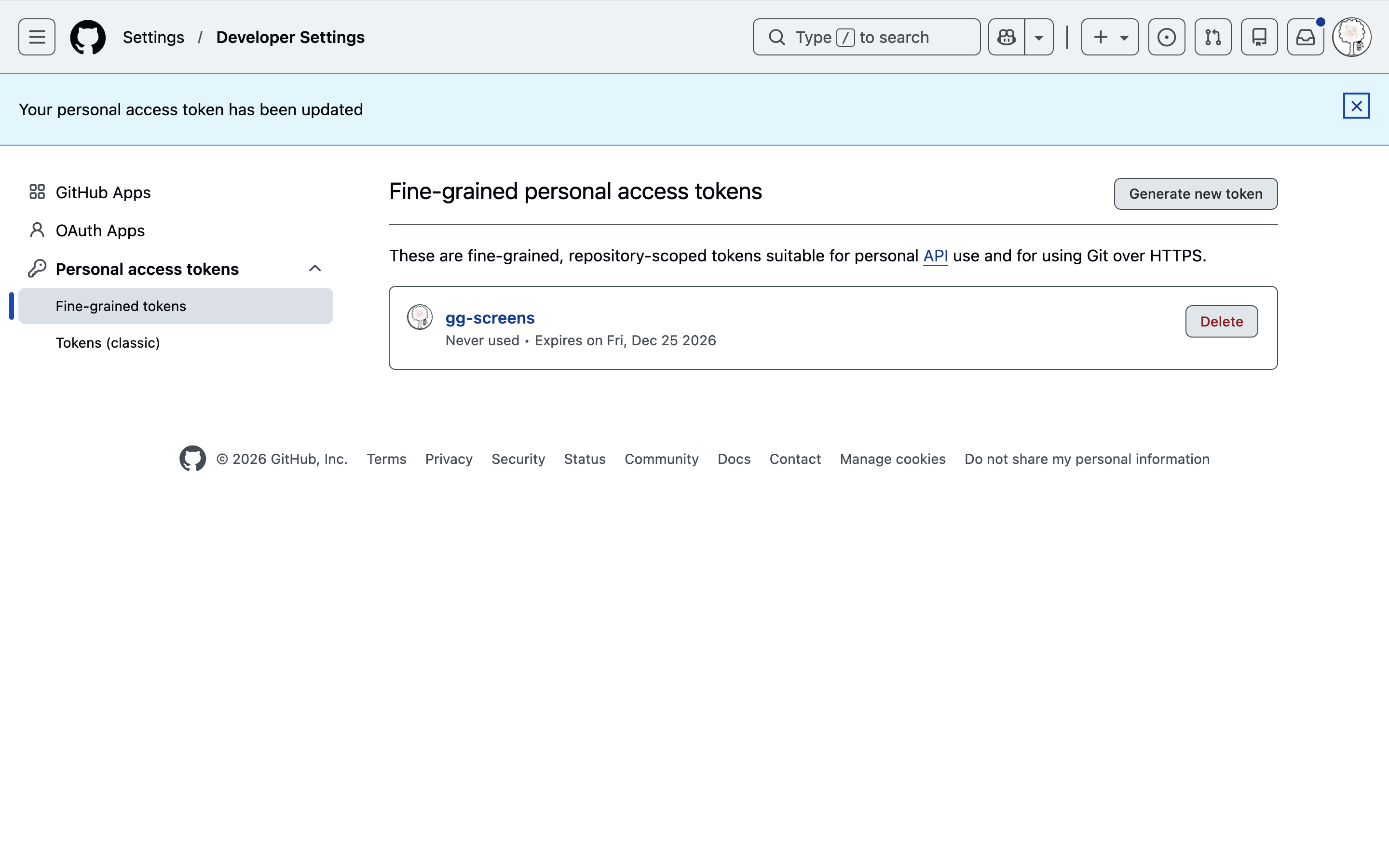
Click Update at the bottom of the page. GitHub doesn’t ask you to confirm, and it shows Your personal access token has been updated:
The token itself stays the same, so the copy that your credential helper saved keeps working. Run the same push again:
$ git push
To https://github.com/generic-grocery-dev/generic-grocery.git
   69ae5ef..b6abefe  main -> main
On the ZIP route, git push -u origin main creates main on GitHub and sets it as your branch’s upstream:
$ git push -u origin main
To https://github.com/generic-grocery-dev/generic-grocery.git
 * [new branch]      main -> main
branch 'main' set up to track 'origin/main'.
And… the setup commit is on GitHub! Git didn’t ask for your token this time, because your credential helper saved it during the first push and sent it again. GitHub checked it, found the Workflows permission, and accepted check.yml. Your hashes will differ, because they depend on your name and the time of your commits.
Give GitHub a minute, then run npm run check. The report now says GitHub’s main is the same commit as yours, and the only remaining lines marked ! are this week’s three issues.
Note: If the push fails with “Invalid username or token”, then your token has probably expired. Click Regenerate token on its page, add Workflows if it’s missing, and paste the new token at Password when Git asks for it.
If GitHub still refuses your push with the original message about missing workflow scope, then open the token’s page again and check that it lists Workflows.
Before you move on, check that you can explain what happened:
-
Your token pushed the site’s code all through the last course. Why did GitHub refuse this push?
-
GitHub’s message says “
workflowscope”. What’s it called on your fine-grained token? -
When does
check.ymlrun, and does it run when you push straight tomain?
-
The setup commit adds
.github/workflows/check.yml, a workflow file. GitHub refuses any push that adds or changes a workflow unless the token has the Workflows permission, and the token only had Contents. -
It’s called the Workflows permission. “Scope” is the word for classic tokens, and GitHub’s message uses it for every token.
-
It runs on every pull request into
main. It never runs on a push tomain.
Your repository on GitHub now holds a workflow, but check.yml only checks the site. In the next lesson, you’ll add the deploy workflow, the one that builds the site and puts it live, and you’ll read both workflows side by side.
